



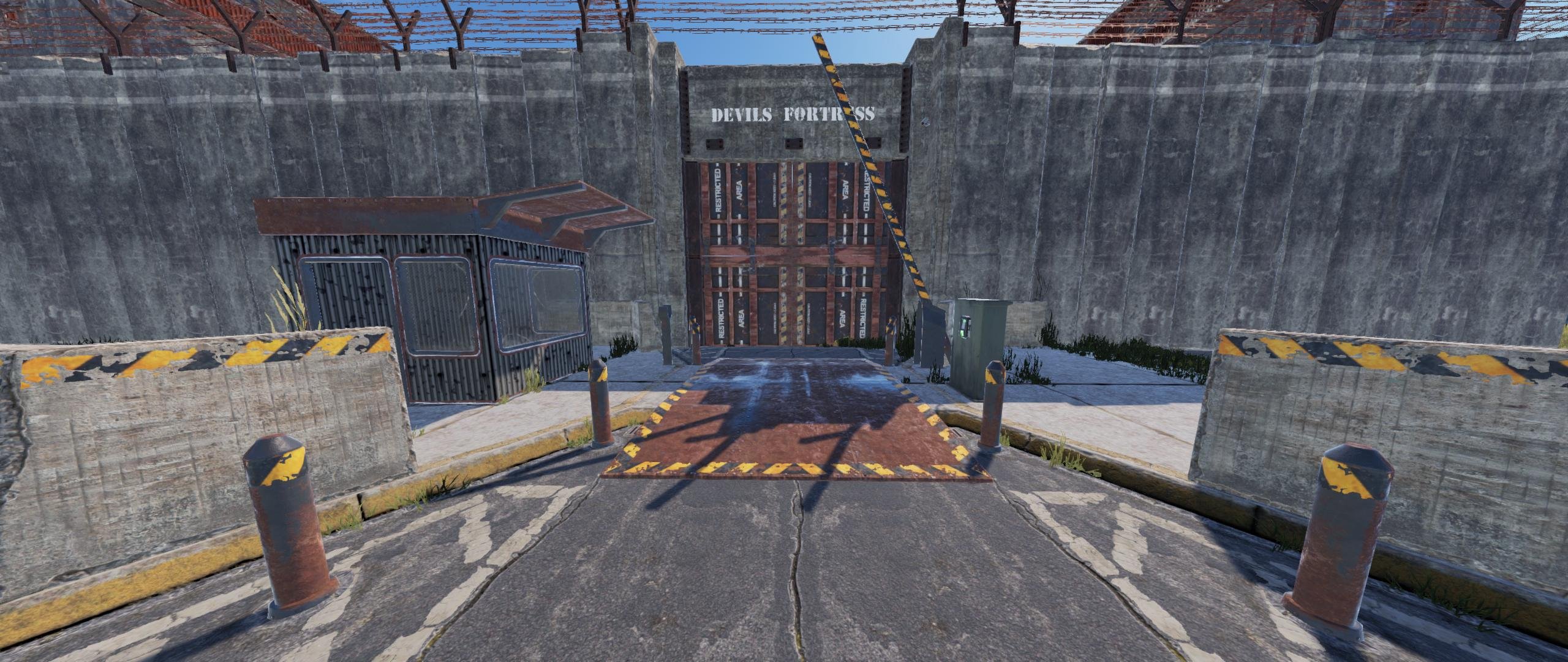
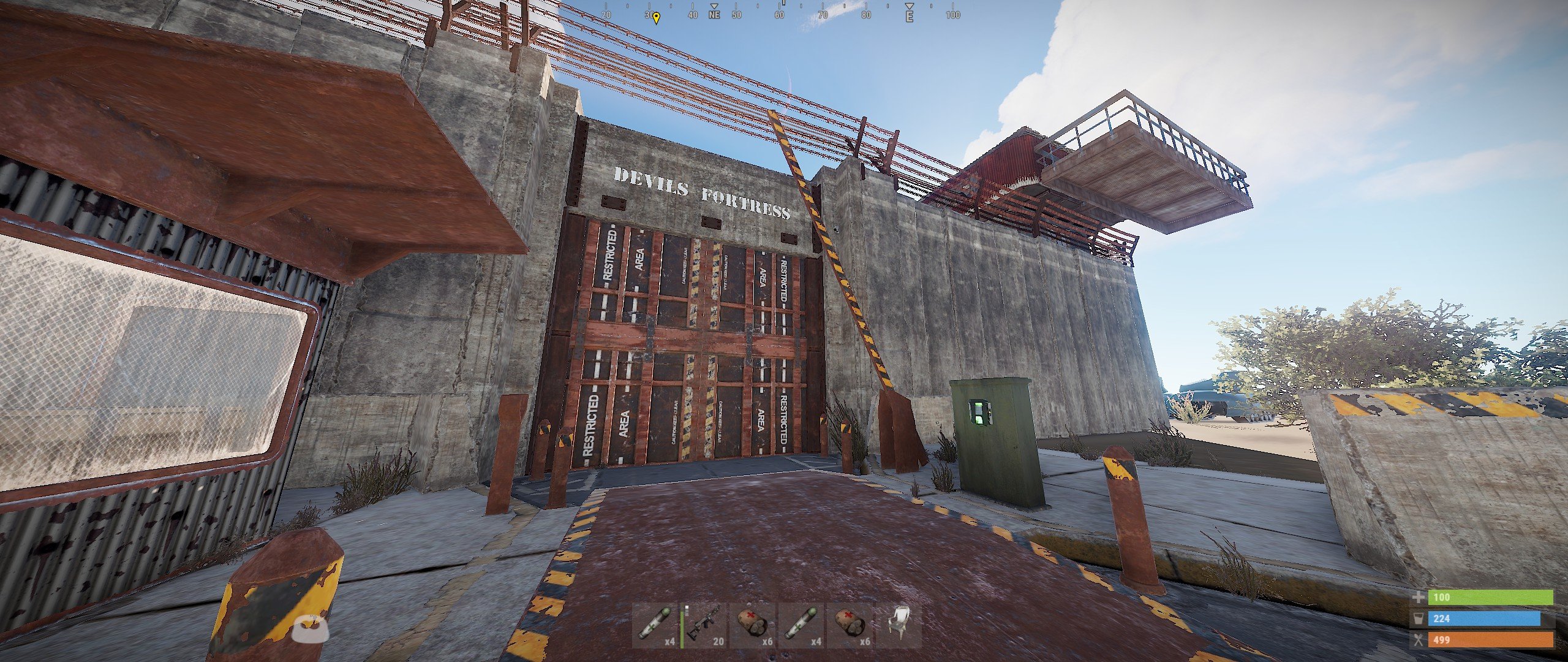
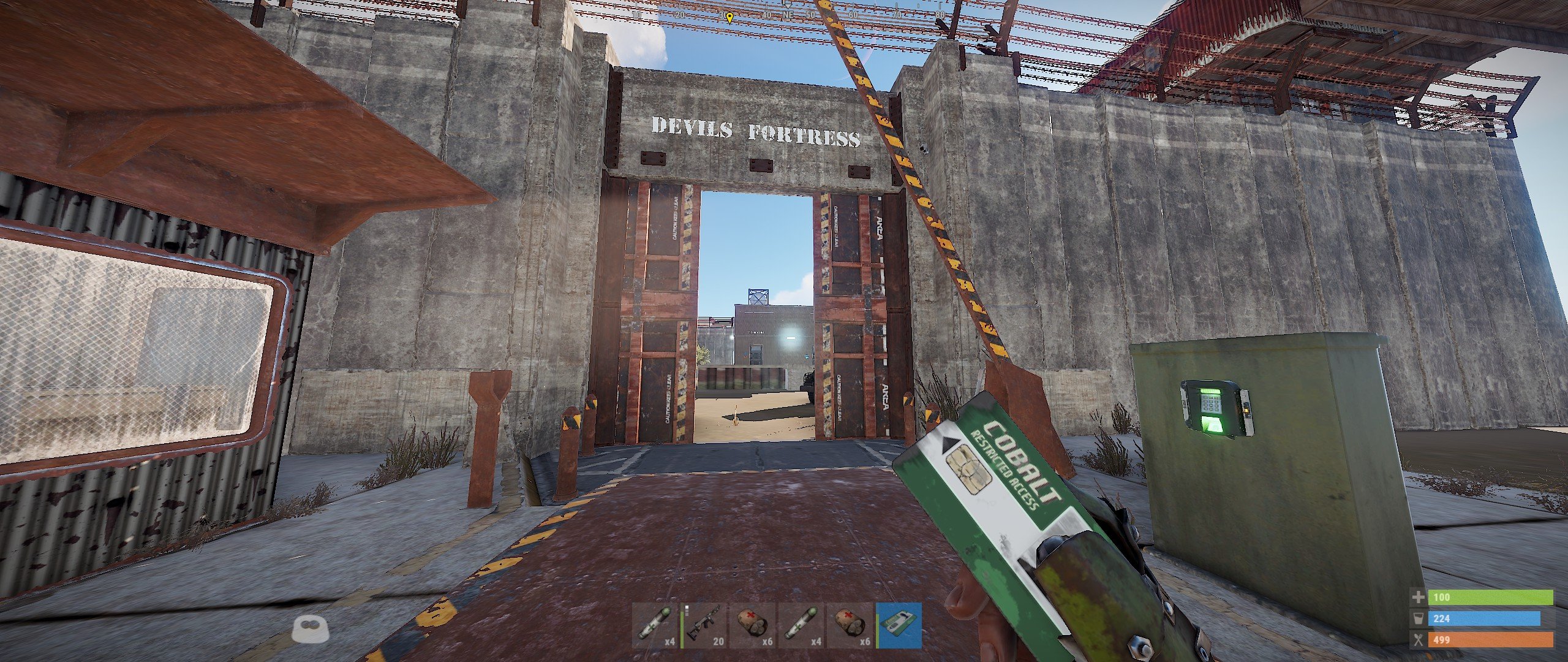
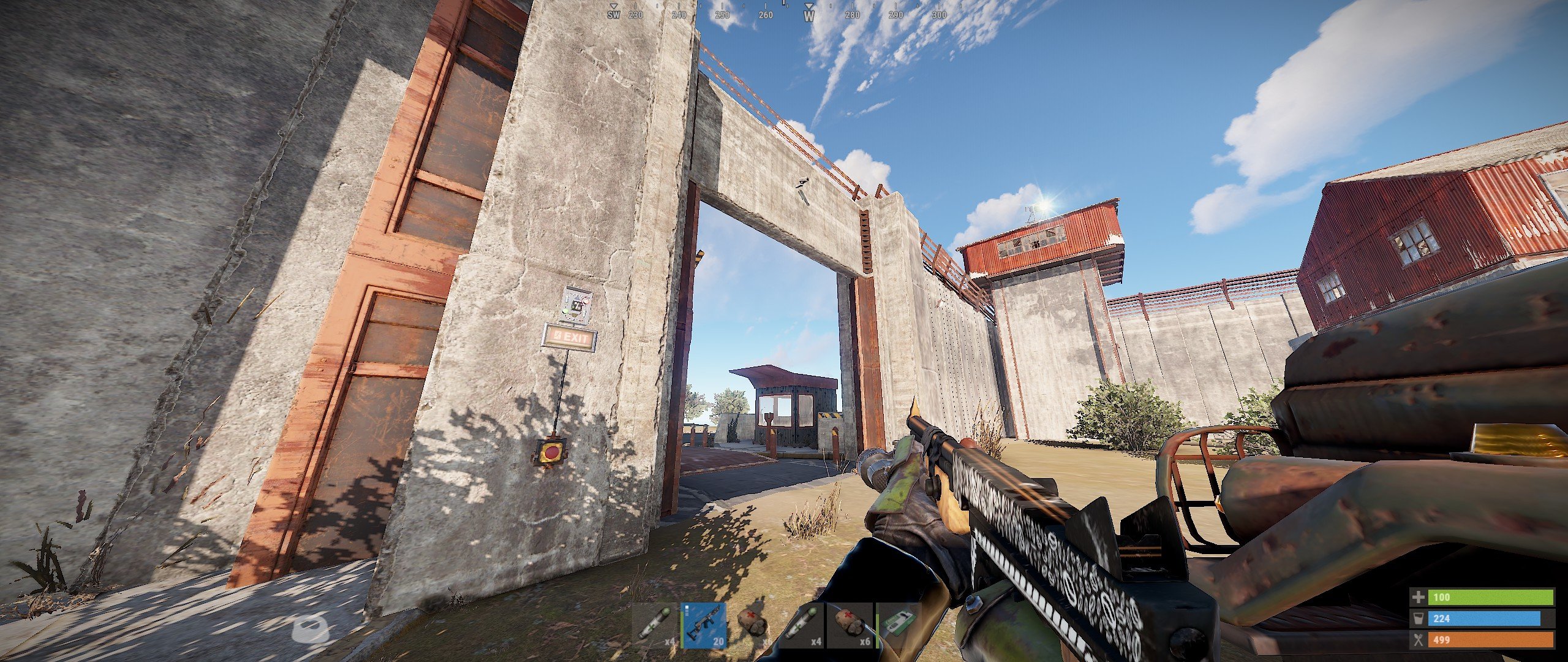
It is the complete GREEN card puzzle with Compound Wall and 4 Sliding Blast Doors, along with the Checkpoint
for an entrance to use in your own maps, prefabs, monuments or such.
This prefab is FREE to use for any purpose you desire, however, customize it your own needs and add/remove what you like.
To check if the connections are working, in RustEdit, select View, then Show IO Connections. There should be green text with
descriptions of Input/Output and Power messages. Also you should see a black wire lines connecting each item.
NOTE: This prefab requires the Oxide.Ext.RustEdit.dll to be installed on the server for the puzzle to work.
Remember to customize the timers on the card reader and press button to your own time.
Default is 240 seconds (Card Reader) and 60 seconds (Press button) and if you like to use another card color on the reader.
Have a wonderful day.
SUPPORT: If you need any info, help, or have bugs, problems or any support requirement, join my Discord
What's New in Version 1.0.0
Released
No changelog available for this version.
You may only provide a review once you have downloaded the file.
There are no reviews to display.