





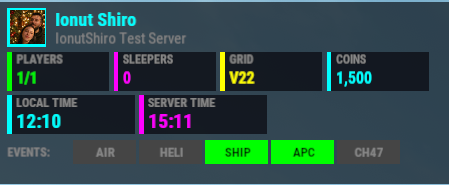
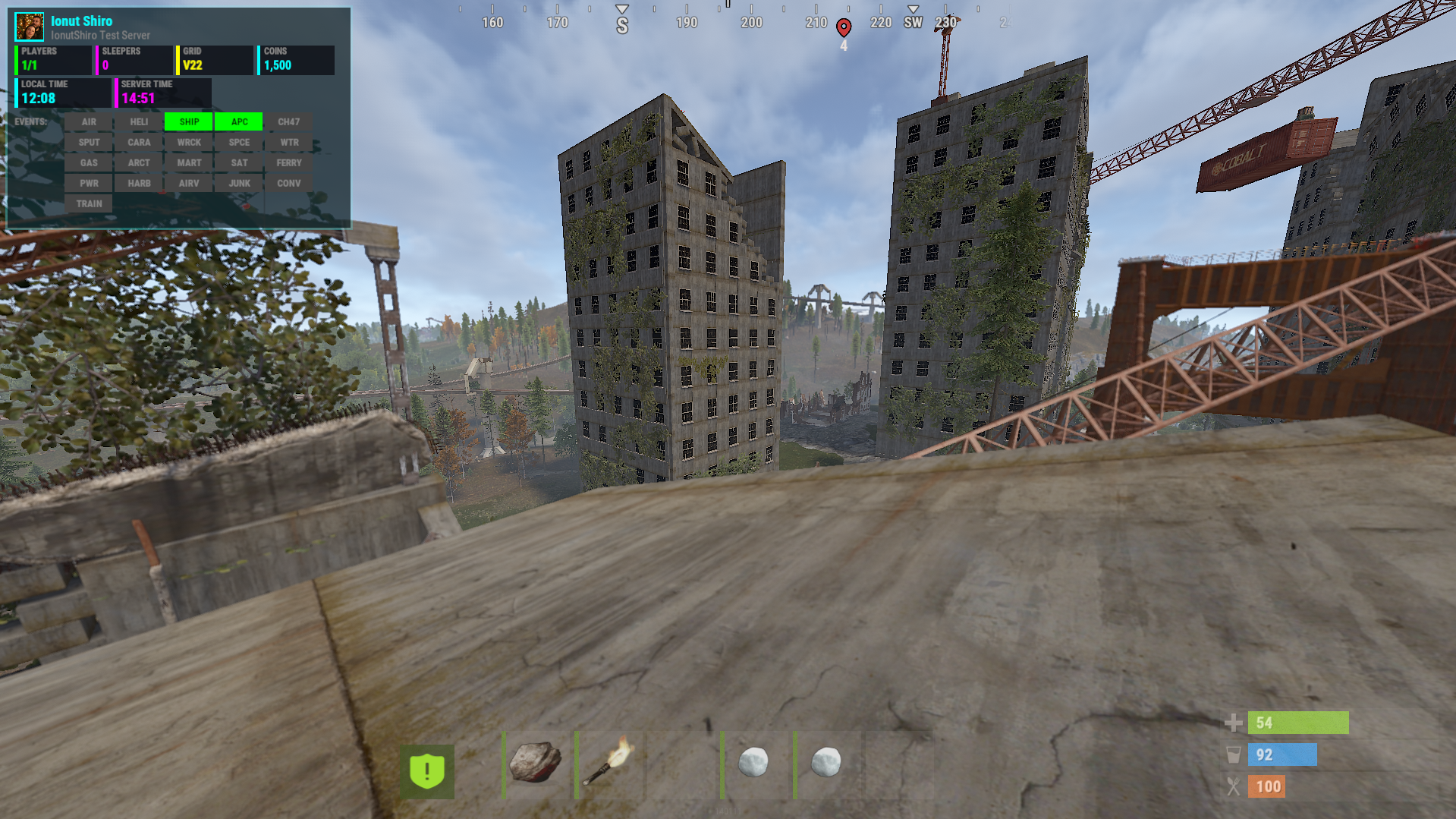
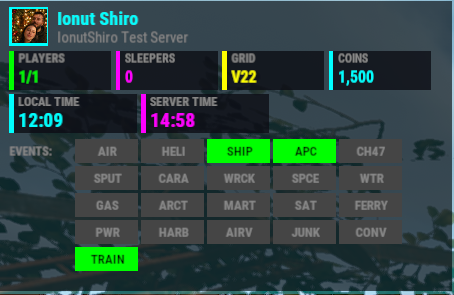

A clean, lightweight MMORPG-style HUD for Rust, showing:
Player Avatar pulled from steamid , player name , server name loaded automatically from server config
Online players & sleepers
Position grid
In-game economy balance ( ServerRewards / Economics )
Local + Server Time
Standard Rust Events ( Cargo / CH47 / Patrol Helicopter / Bradley )
Custom Events Sputnik, Caravan, Shipwreck, Space Event, Water Event, Gas Station, Arctic Base, Supermarket, Satellite Dish, Ferry Terminal, Power Plant, Harbor, Air Event, Junkyard, Convoy, Armored Train
Fully configurable, with smart UI updates that avoid lag and UI flicker.
Dependencies :
ImageLibrary (for Steam avatars)
Recommended (optional):
ServerRewards
Economics
Sputnik
Caravan
Shipwreck
Space Event
Water Event
Gas Station
Arctic Base
Supermarket
Satellite Dish
Ferry Terminal
Power Plant
Harbor
Air Event
Junkyard
Convoy
Armored Train
Jet Event
Cargo Plane Crash Event
Airfield Event
Permissions :
oxide.grant group default mmorpghud.use
Chat Command :
Command | Permission | Purpose |
|---|---|---|
|
| Toggle HUD on/off |
|
| View/set local timezone |
|
| Auto-detect timezone from IP Allows access to the admin configuration panel. |
Config :
{
  "Update Interval (seconds)": 5.0,
  "Colors": {
    "Panel Background": "#0d0d12F0",
    "Panel Border": "#00ffff60",
    "Neon Cyan": "#00ffffFF",
    "Neon Magenta": "#ff00ffFF",
    "Neon Green": "#00ff00FF",
    "Neon Yellow": "#ffff00FF",
    "Text White": "#ffffffFF",
    "Text Gray": "#888888FF",
    "Event Active": "#00ff00FF",
    "Event Inactive": "#444444FF"
  },
  "Features": {
    "Show Avatar": true,
    "Show Players": true,
    "Show Sleepers": true,
    "Show Local Time": true,
    "Show Server Time": true,
    "Show Location": true,
    "Show Economy": true,
    "Show Events": true,
    "Economy Label": "COINS"
  },
  "Position": {
    "Anchor (TopLeft, TopRight, BottomLeft, BottomRight)": "TopLeft",
    "Offset X (pixels from anchor)": 5.0,
    "Offset Y (pixels from anchor)": 5.0,
    "Panel Width": 305.0
  },
  "Events": {
    "Airdrop": true,
    "Patrol Helicopter": true,
    "Cargo Ship": true,
    "Bradley APC": true,
    "Chinook (CH47)": true,
    "Sputnik": false,
    "Caravan": false,
    "Shipwreck": false,
    "Space Event": false,
    "Water Event": false,
    "Gas Station": false,
    "Arctic Base": false,
    "Supermarket": false,
    "Satellite Dish": false,
    "Ferry Terminal": false,
    "Power Plant": false,
    "Harbor": false,
    "Air Event": false,
    "Junkyard": false,
    "Convoy": false,
    "Armored Train": false,
    "Airfield Event": false,
    "Cargo Plane Crash": false,
    "Jet Event": false
  },
  "Economy Plugin (ServerRewards or Economics)": "ServerRewards",
  "Admin Panel Colors": {
    "Panel Background": "#0d0d12F5",
    "Panel Border": "#00ffff60",
    "Button": "#1a1a2eFF",
    "Button Active": "#00ffffFF",
    "Toggle On": "#00ff00FF",
    "Toggle Off": "#ff0000FF"
  }
}
What's New in Version 1.0.2
Released
Added admin ui to enable/disable events with a click instead of config and enabling/disabling other elements from the hud but also adjust position of where HUD is displayed easily from the admin tab.
Added support for JetEvent/AirfieldEvent/CargoPlaneCrash Event and now supports modifying the currency denomination from config from Coins to whatever you want to name it.
You may only provide a review once you have downloaded the file.
There are no reviews to display.