



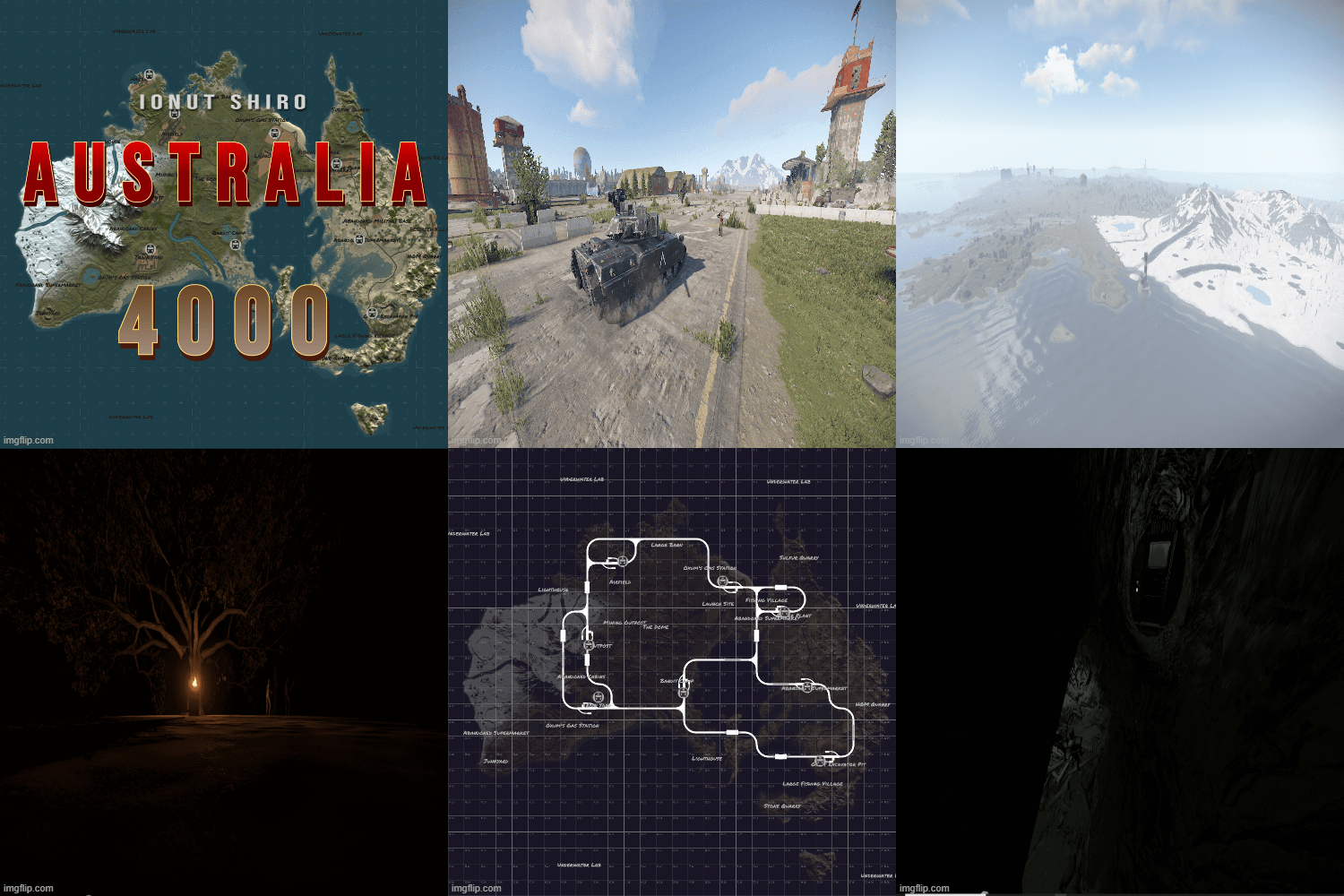
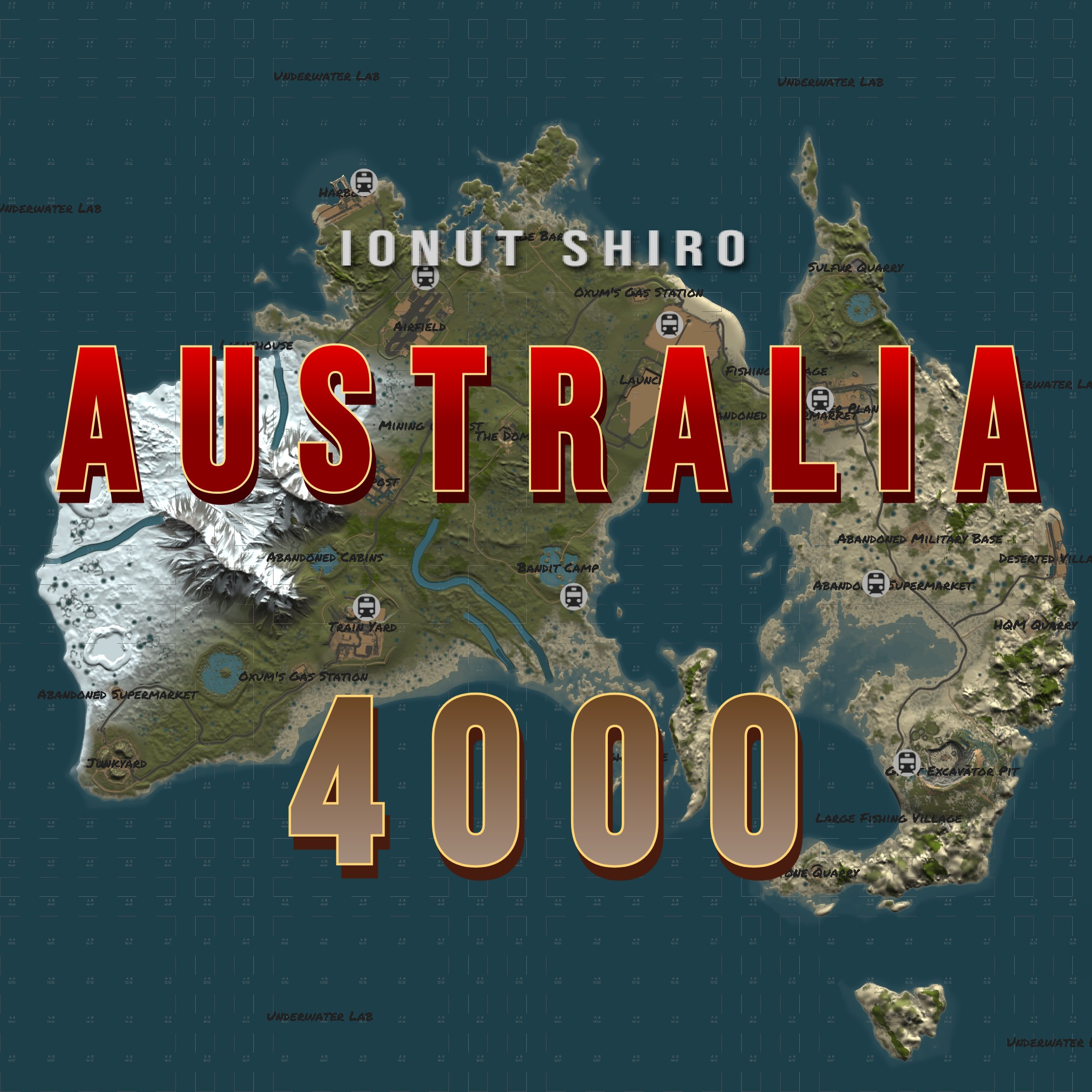
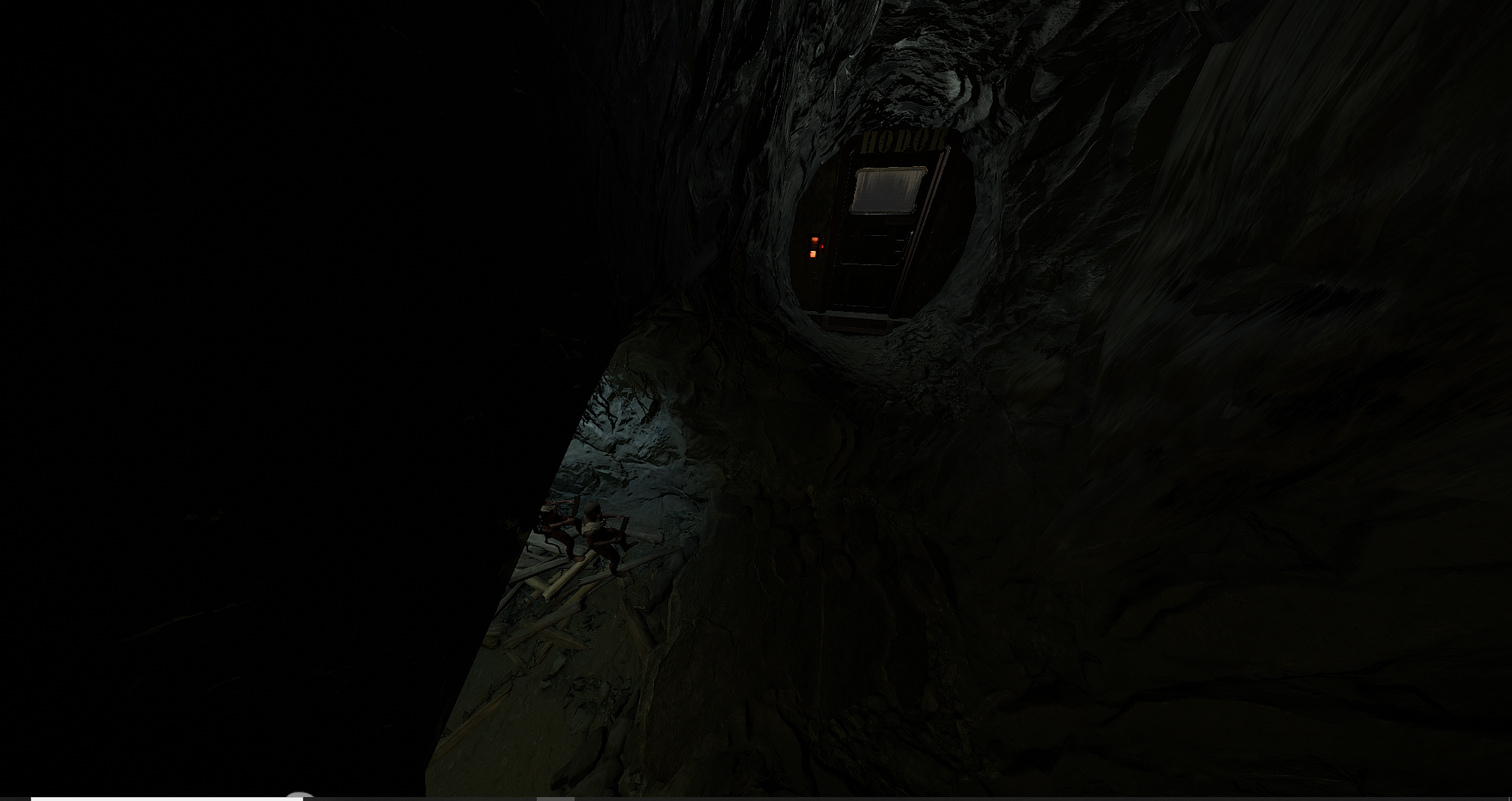

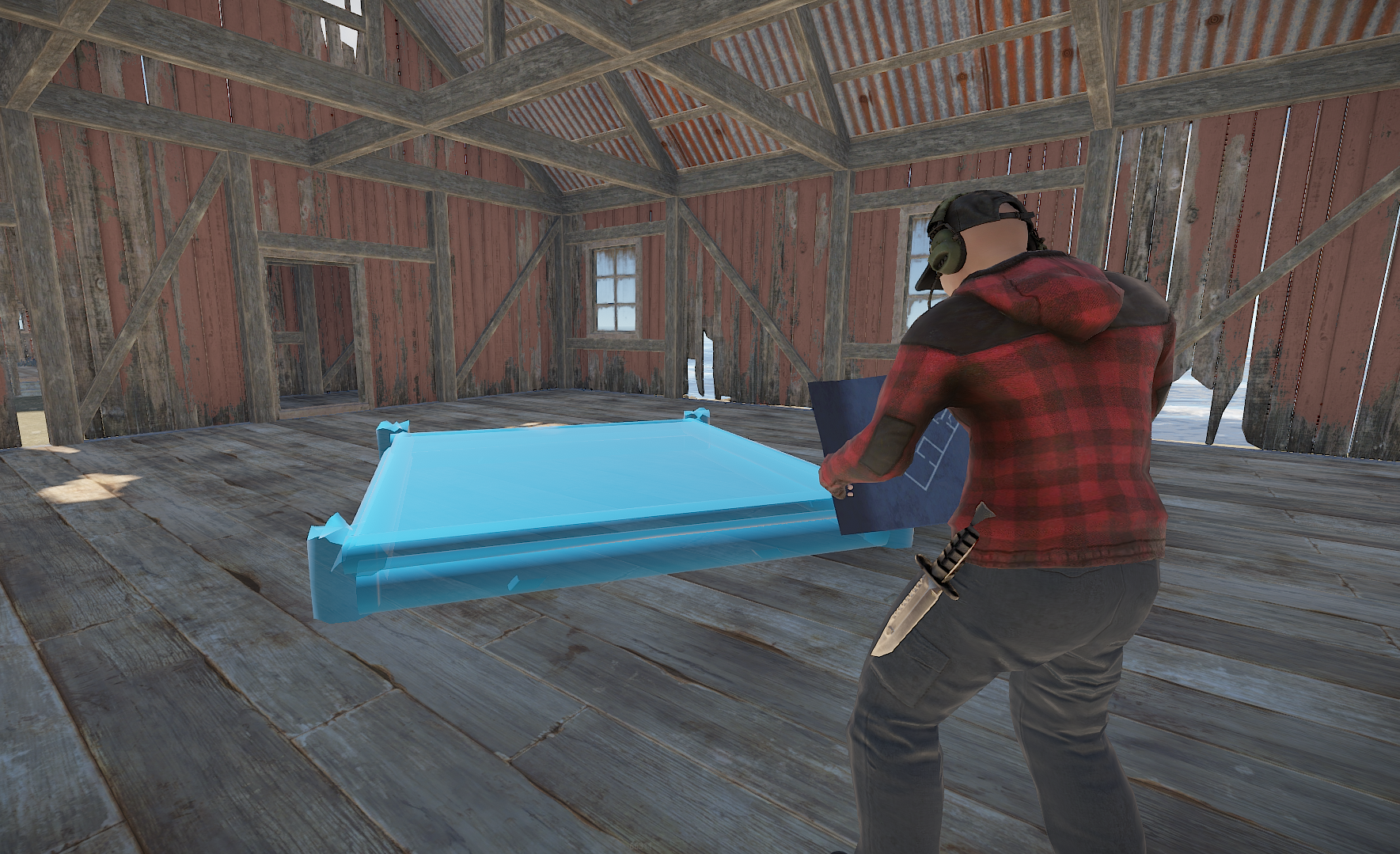
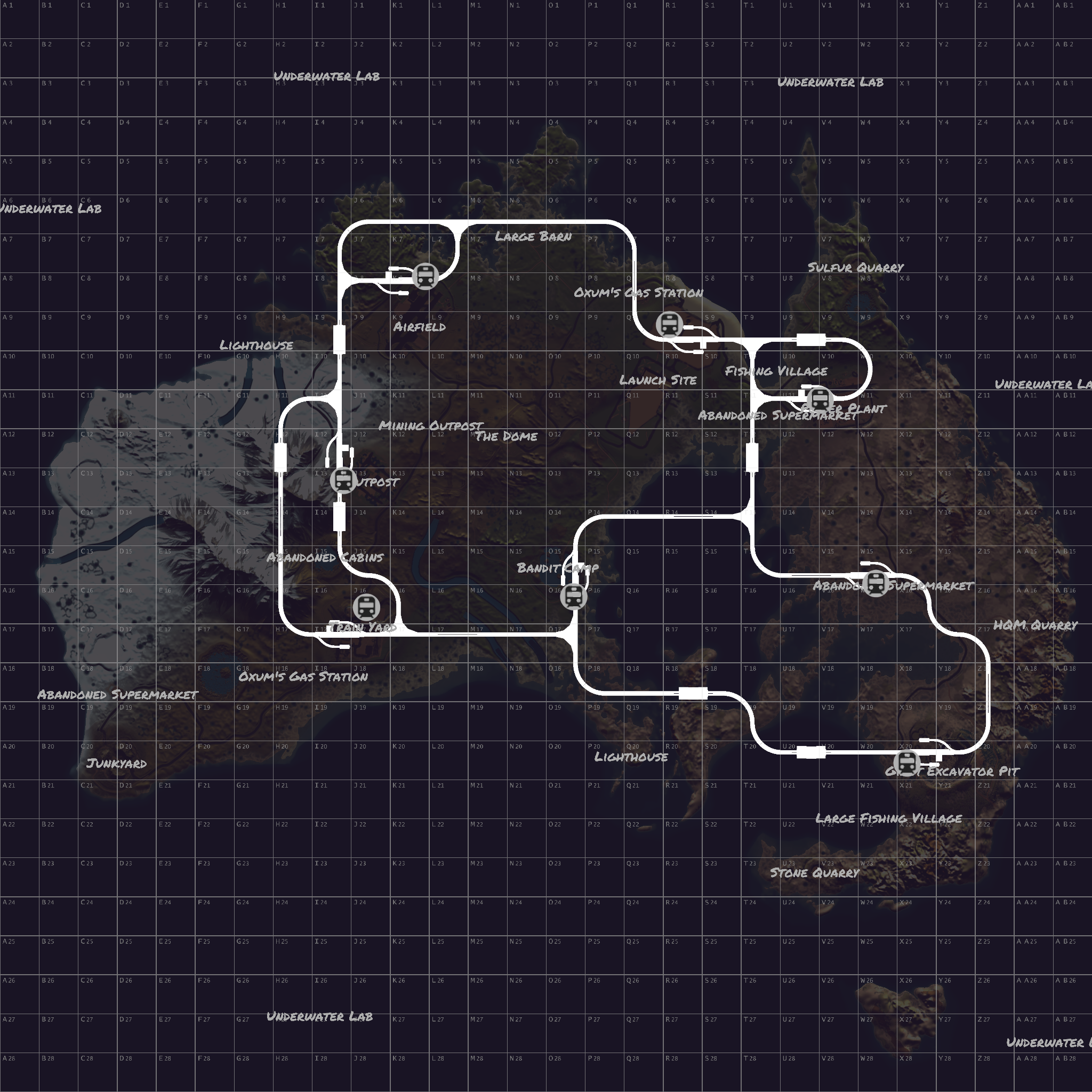
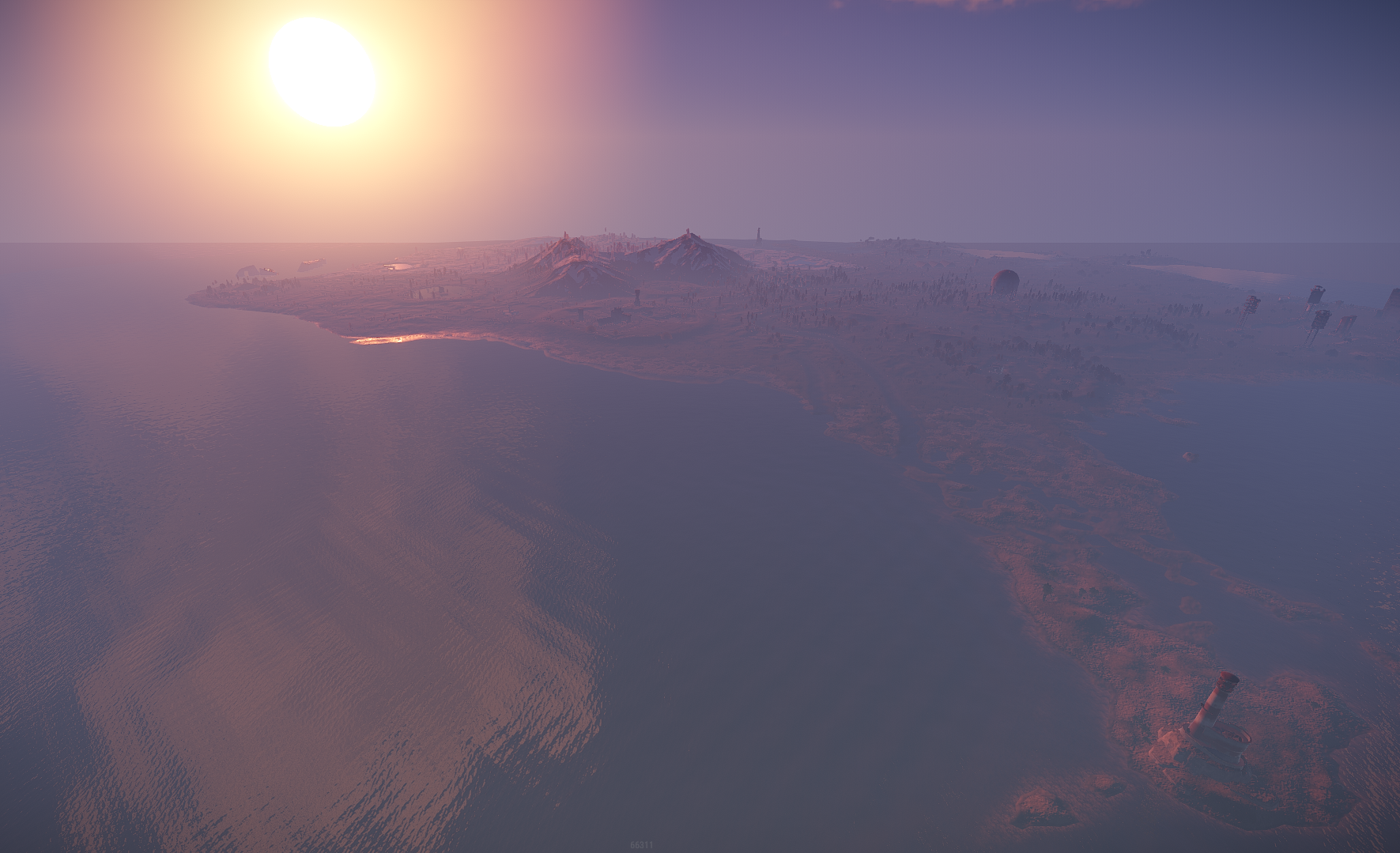
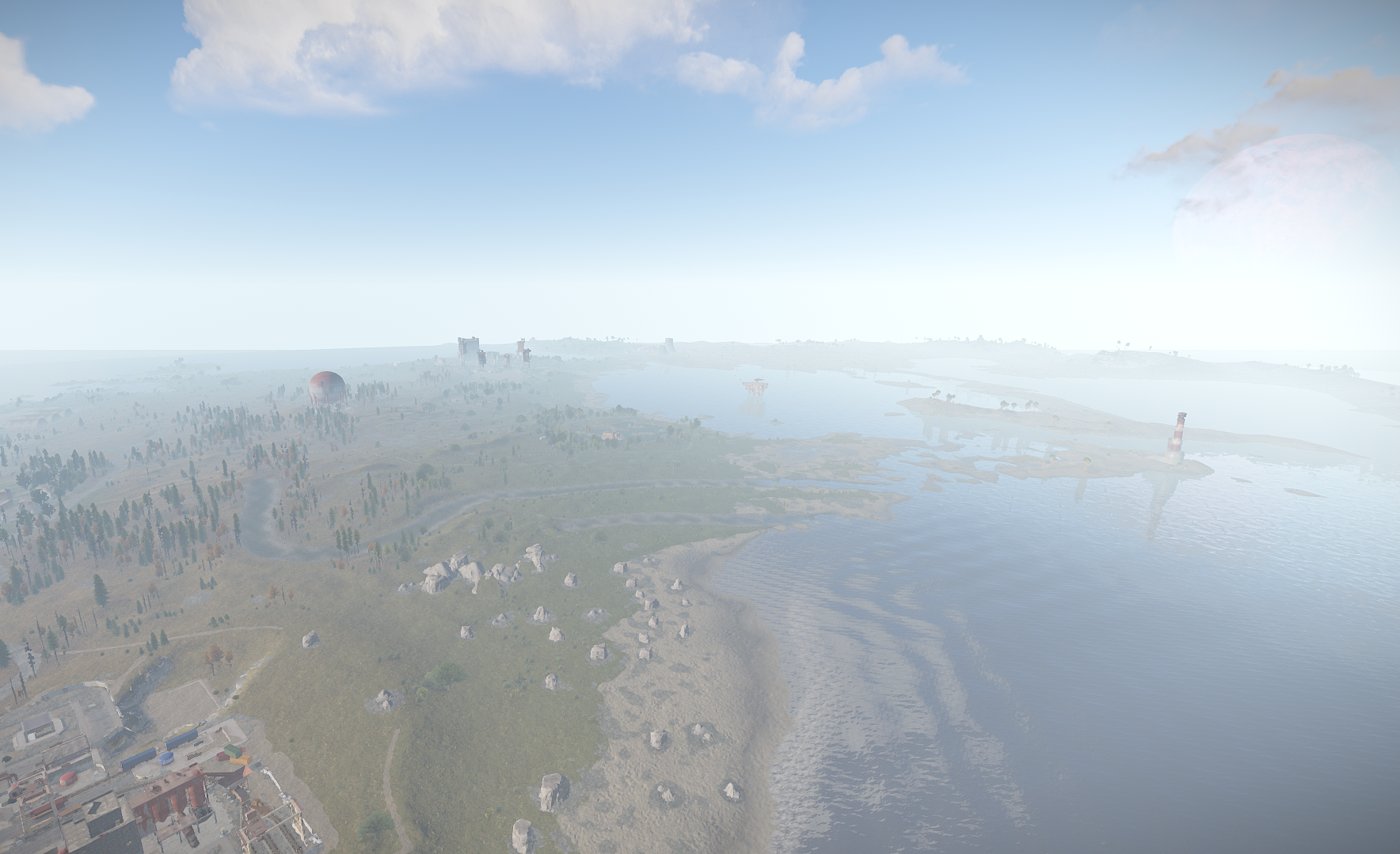
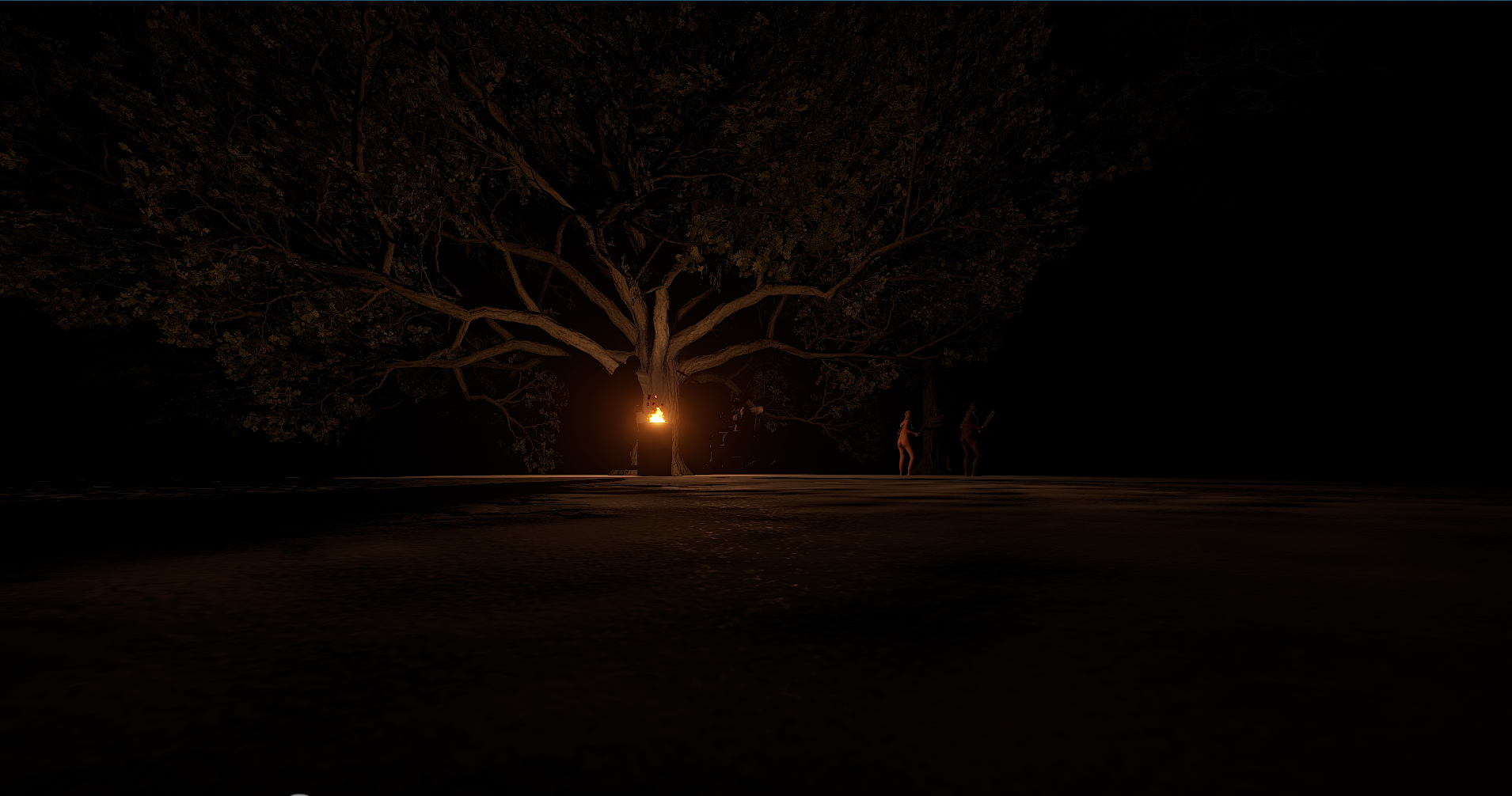
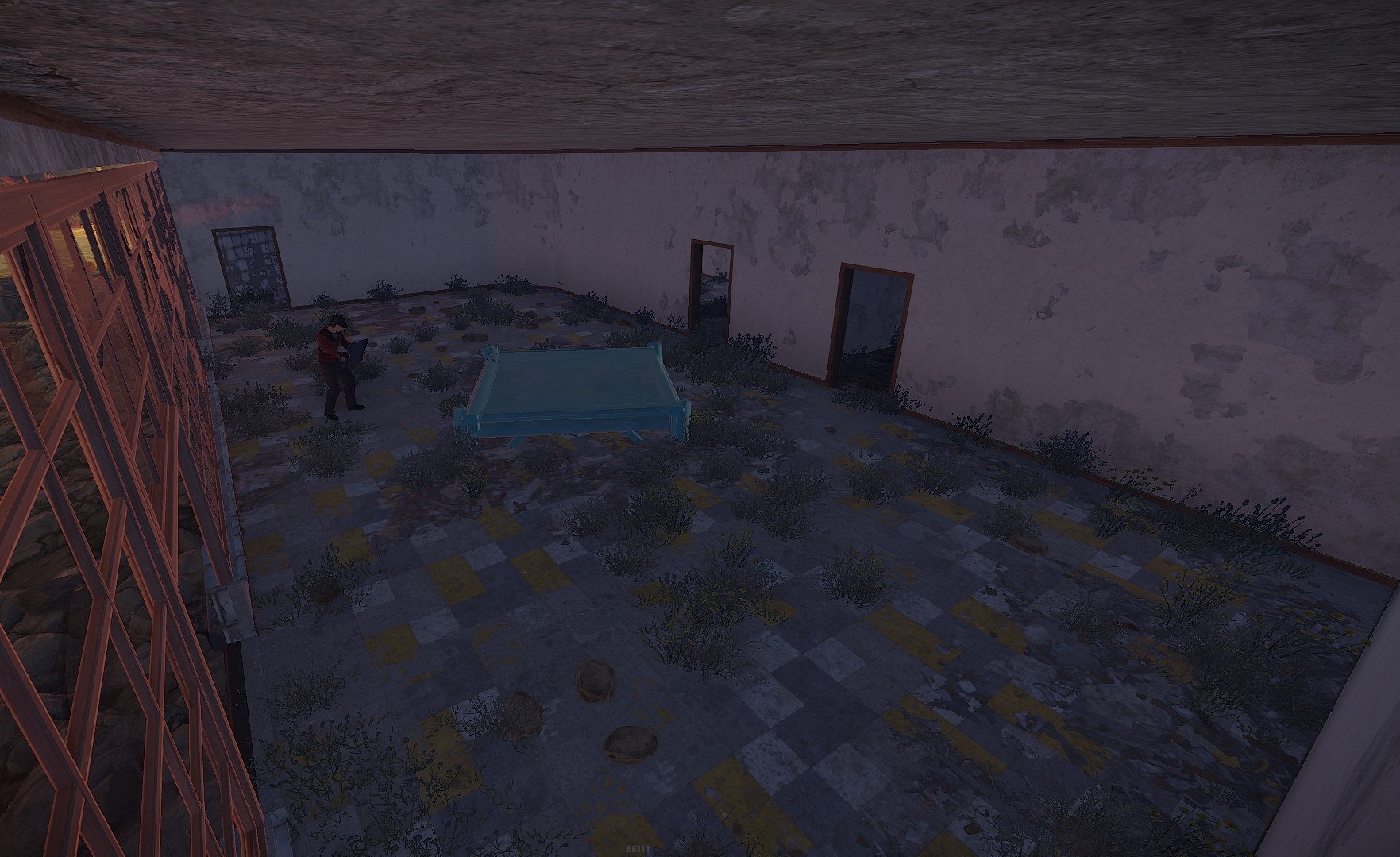
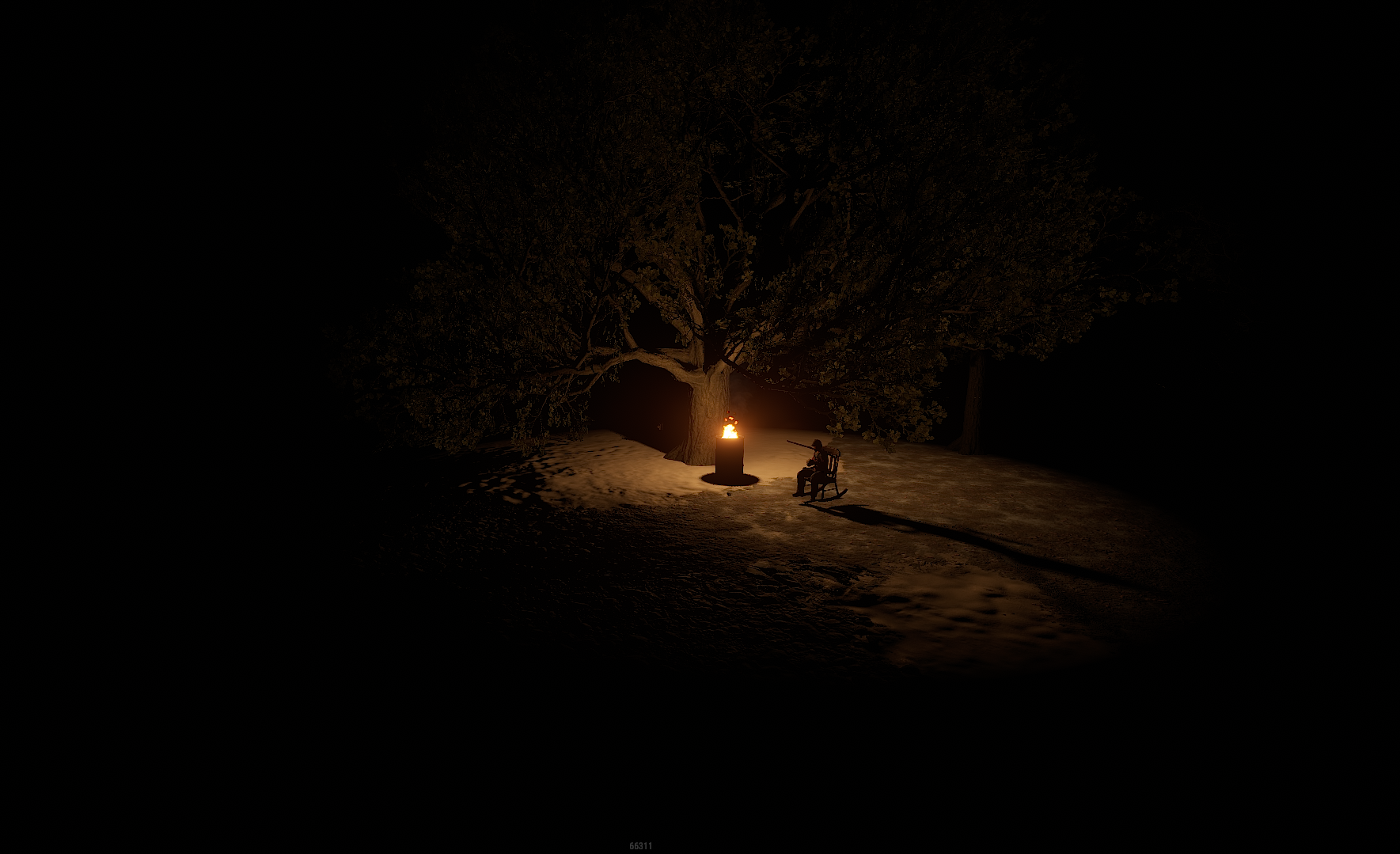
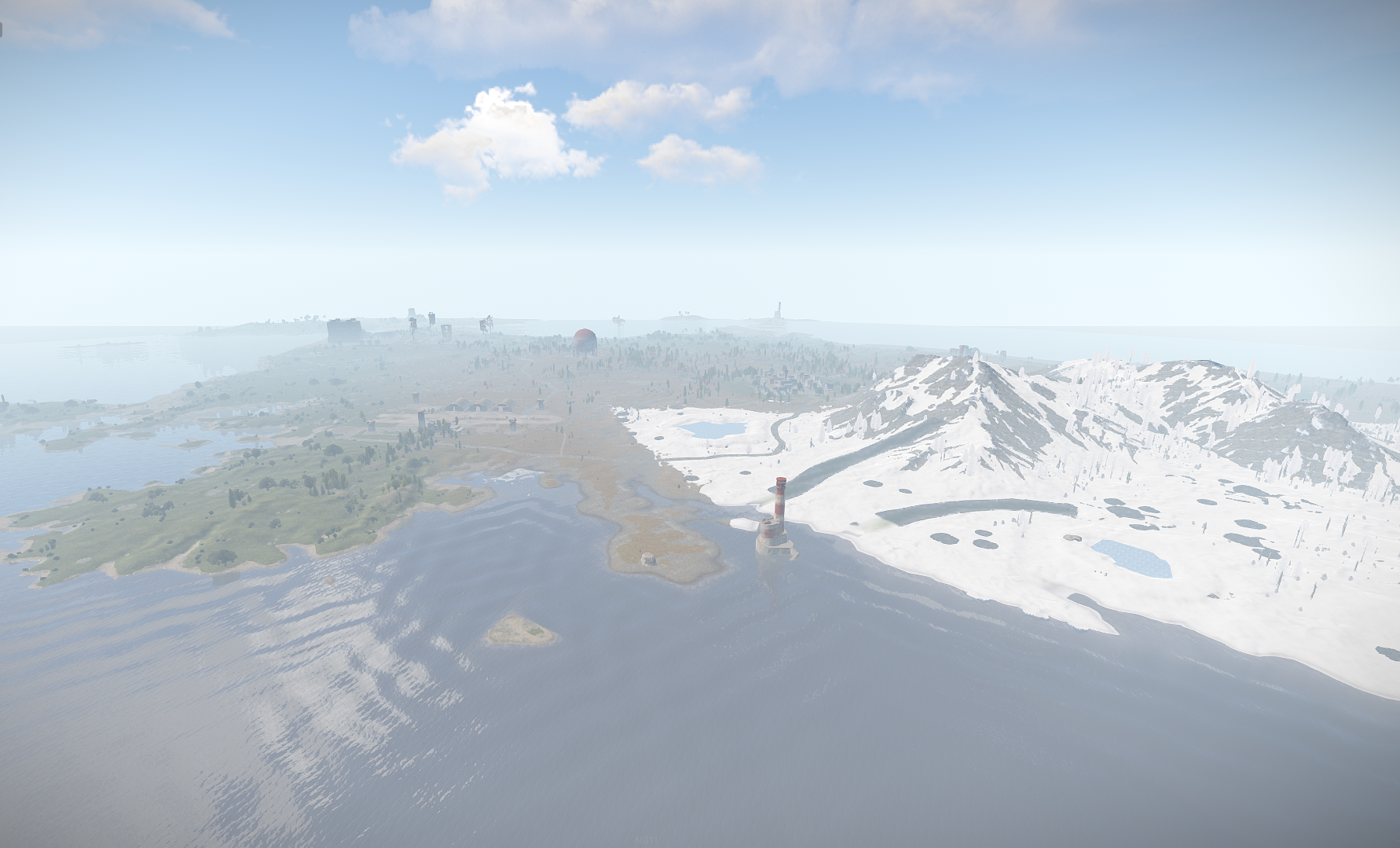
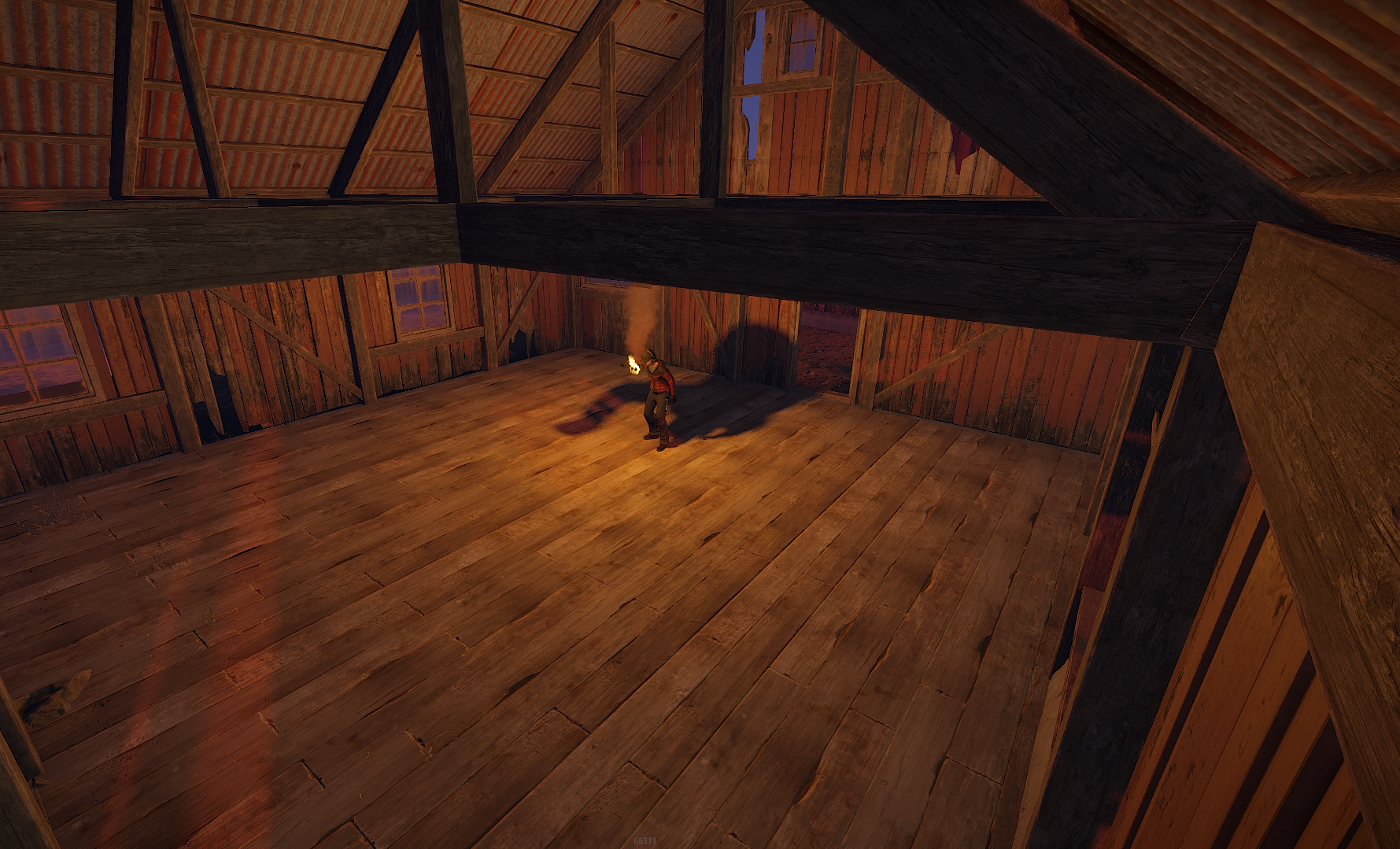
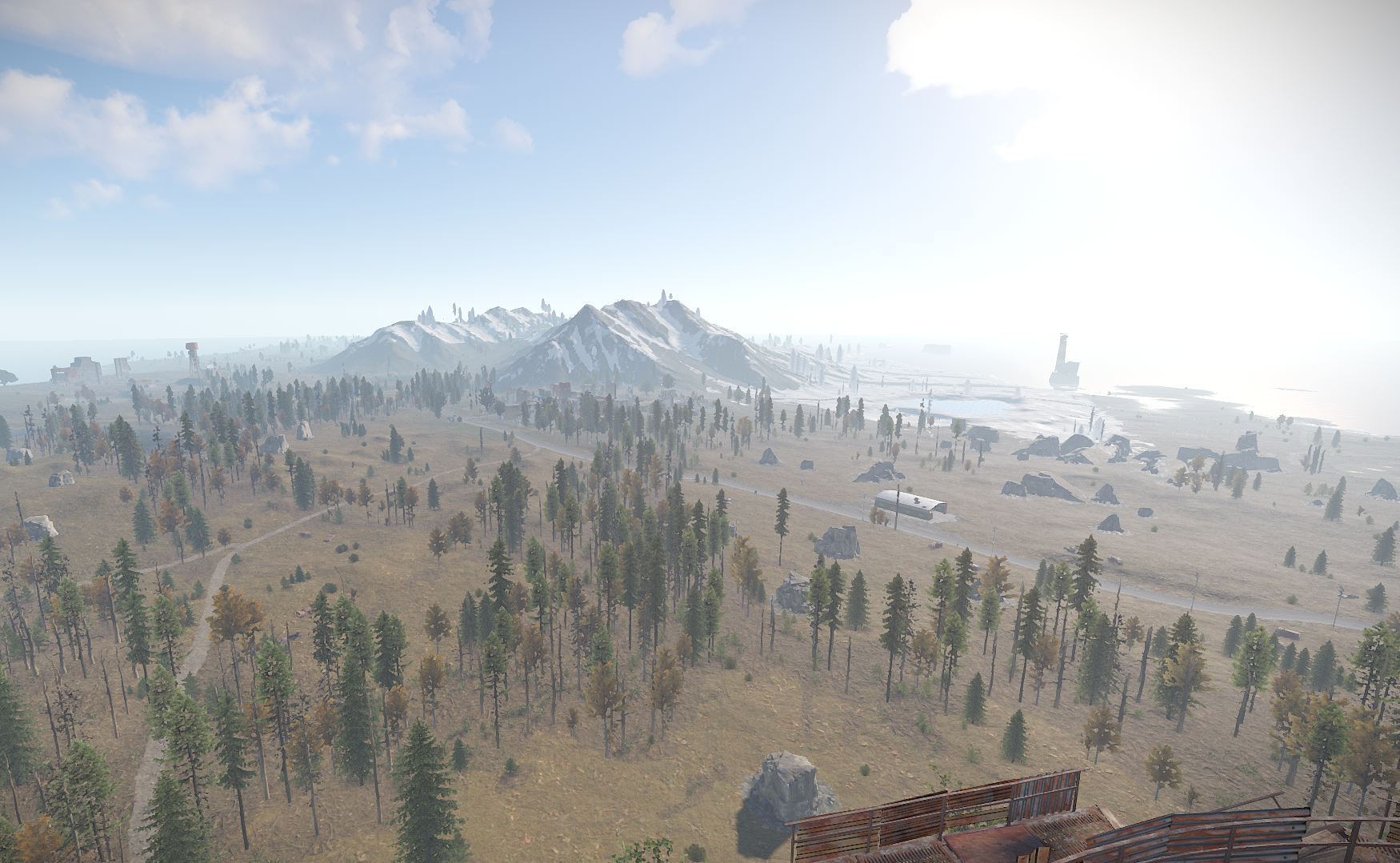
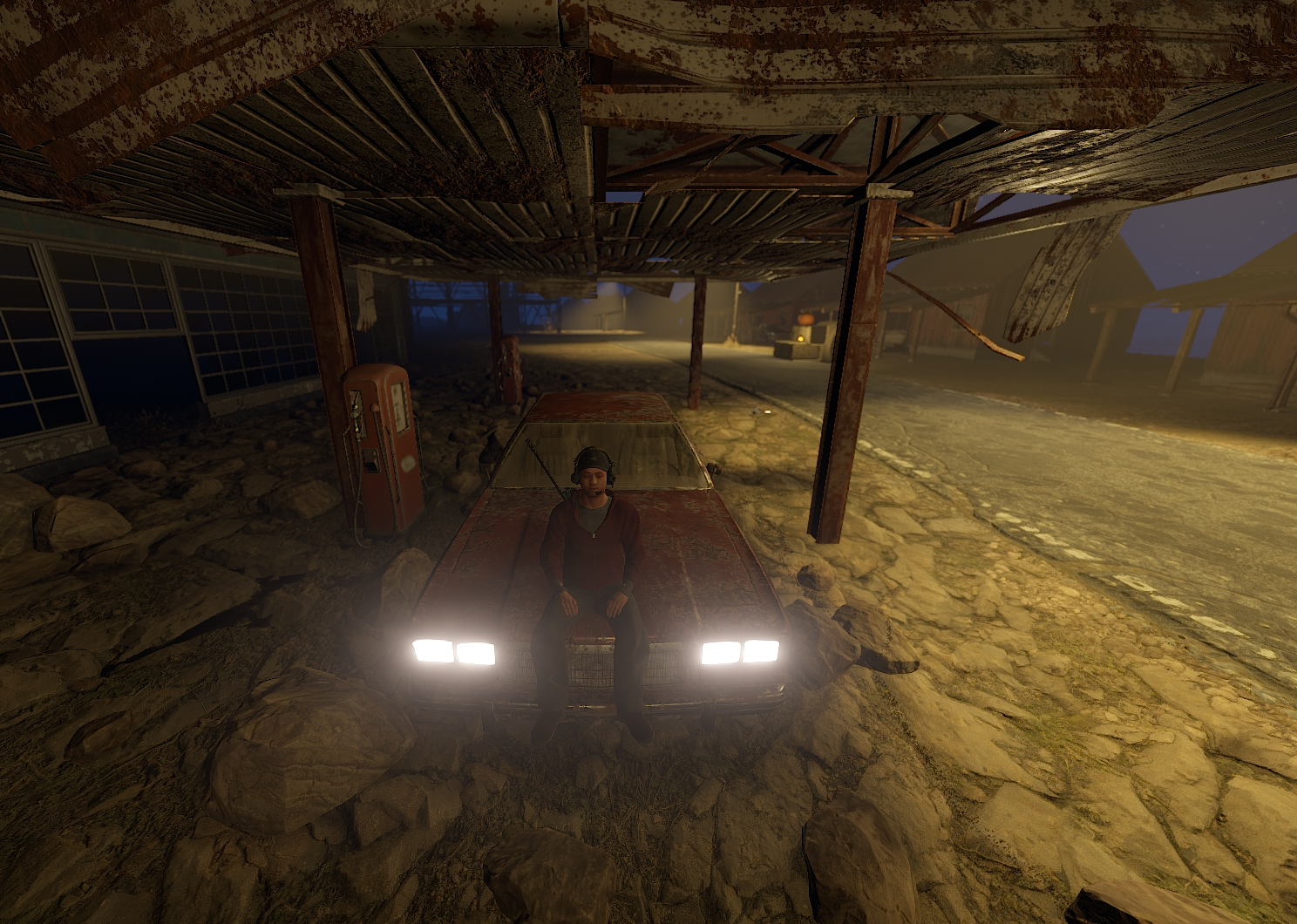
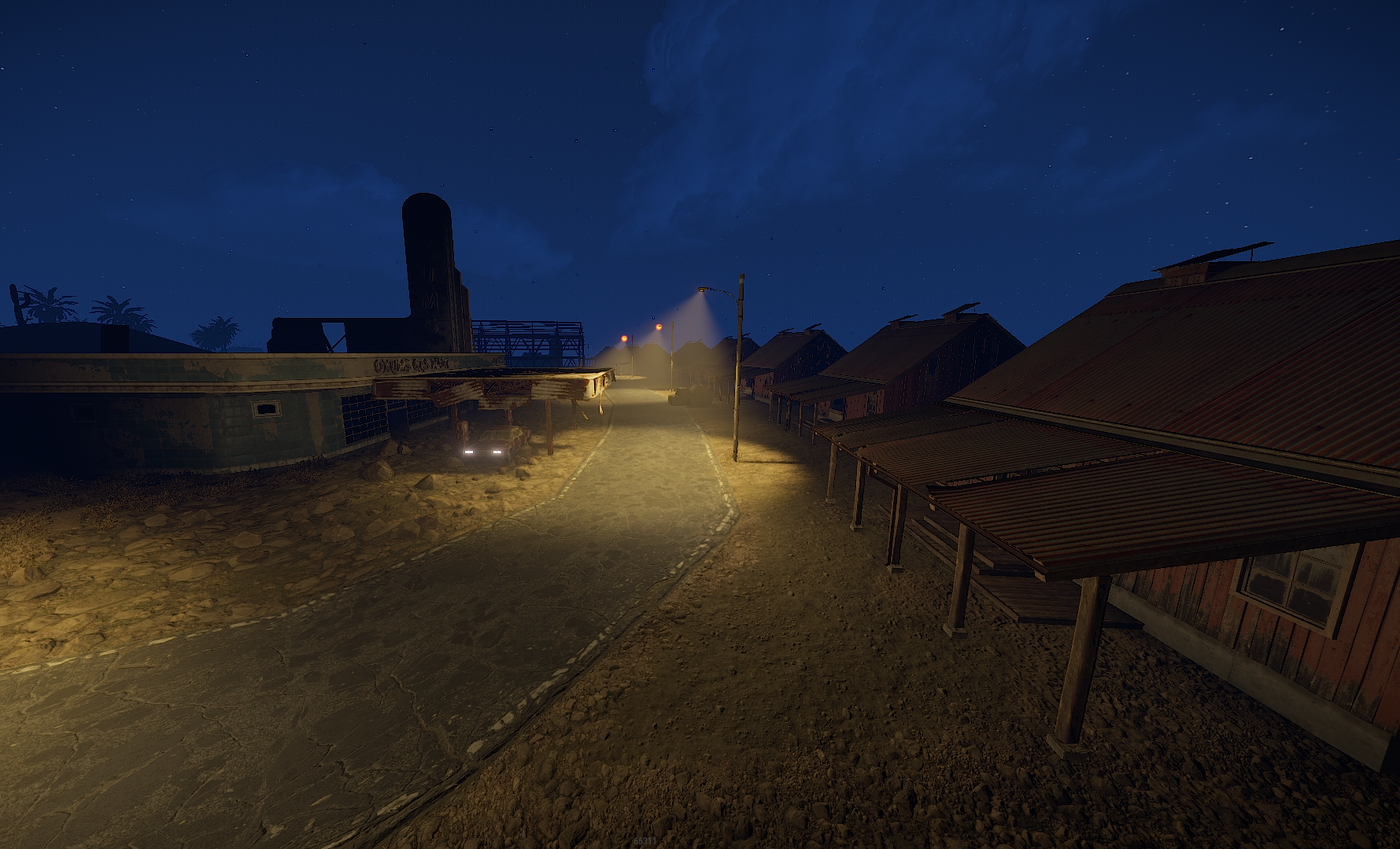
Australia Custom Map was made after the shape of Australia for a friend of mine and we decided to make it public , it has procedural monuments spread across the map and few additions on the roadside including a hidden cave in the mountains with an easter egg from Game of thrones season 8 , the cave in the mountain has zombie spawns and a locked crate inside . Cave is locked behind a blue and red key card puzzle.
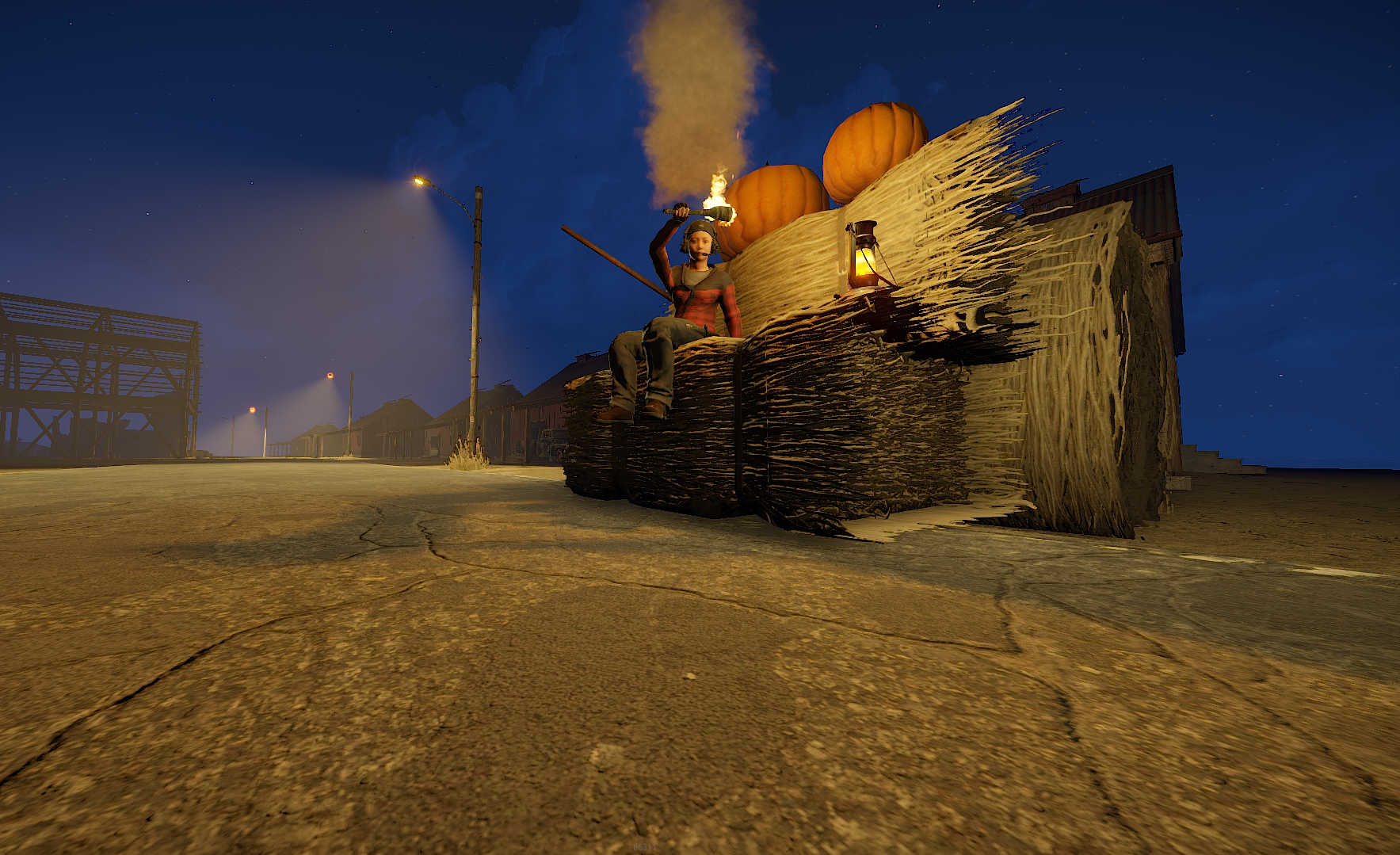
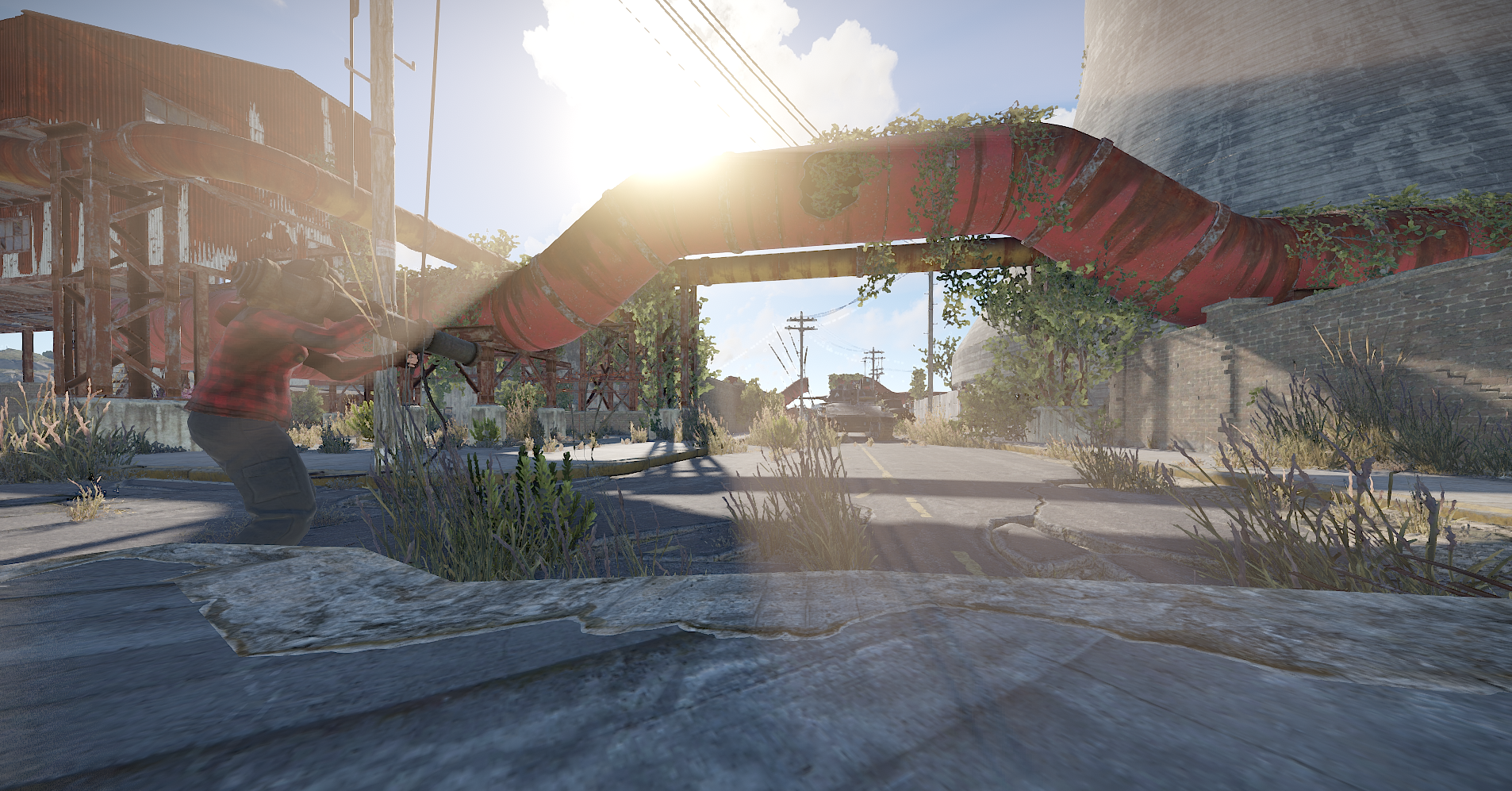
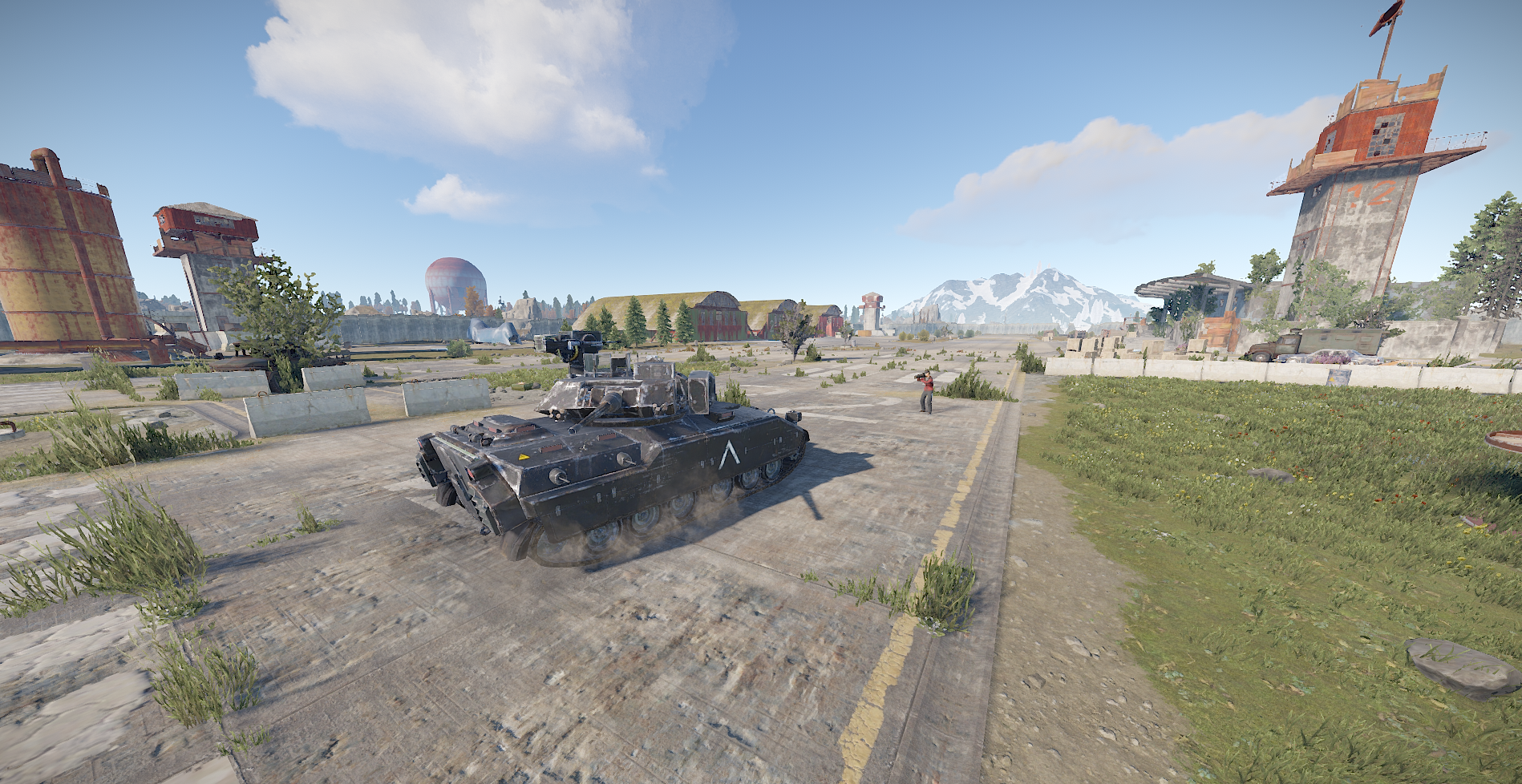
What makes this map special is obviously the shape and terrain of it and Bradley tanks roaming Airfield and Water Plant by default .
Map contains 3 bradley pathsn1 at launch site by default
1 at airfield custom
1 at water plant custom
Bradleys can be removed on demand if you use a plugin for them or you just don't want them at all.
Map has been optimized even for the players with low spec computers to ensure quality and pleasure while playing on it !
Entity count is 3323
Map size : 4000
What's New in Version v4.6.6
Released
May update
Any changes you wish to make on the map you can notify me via support or discord without issues.
You may only provide a review once you have downloaded the file.