
Noryx
WeOxide Member
-
Joined
-
Last visited
Everything posted by Noryx
-
View File sGiveGift One-click activation with automatic 24h gift window When you press Enable, the plugin automatically creates a 24-hour period during which players can claim their gift. No manual scheduling or date setup — activate it and it’s ready. Adjustable time zone Choose your preferred time zone (Paris, London, UTC, etc.). All timestamps displayed by the plugin follow this setting. Clean and user-friendly CUI A custom interface where: Admins configure items, quantities, and images Players see and claim their rewards ImageLibrary support provides clean visuals One-time claim per player Each player can claim the gift only once during the active period. All claim data is automatically saved. ImageLibrary support Easily link custom images for each reward to enhance presentation. Simple data handling All admin settings and player claim data are saved automatically and safely reloaded on server restart. Permissions sgivegift.admin Grants access to the admin UI for configuring gifts. Commands Player Commands /pgift Opens the player gift menu (if a gift event is currently active). Admin Commands /agift Opens the admin UI to configure items, quantities, images, and to enable/disable the gift. /genitems (Rust admin only) Generates a JSON file containing a dictionary of all item shortnames. Configuration file Data file (example) data/SGiveGift/AdminGiftData.json Submitter Noryx Submitted 11/22/2025 Category Plugins
-
View File PlayersSinceWipe PlayersSinceWipe is a powerful Rust plugin designed to track every player who connects to the server after the plugin is installed, starting from the last wipe. It supports multiple wipe modes and can automatically send daily or manual reports to Discord via webhook. Previous player connections before installation are not tracked. Key Features: Automatic tracking of all players since the last wipe. Support for Monthly, Weekly, and BiWeekly wipe modes. Daily automated reports with full player lists and statistics. Manual report system for both chat and console. Full Discord integration through webhook. Multi-language support (French / English) with customizable messages. Commands: /psw.report → Sends a manual report to Discord from in-game chat. psw.report (console) → Sends a manual report from the server console. Benefits: Accurate and fully automated player tracking with zero manual effort. Simple setup and seamless integration with Rust and Discord. Fully compatible with all Rust servers running Oxide or Carbon. Configuration file: Submitter Noryx Submitted 11/22/2025 Category Plugins
-
 PlayersSinceWipe is a powerful Rust plugin designed to track every player who connects to the server after the plugin is installed, starting from the last wipe. It supports multiple wipe modes and can automatically send daily or manual reports to Discord via webhook. Previous player connections before installation are not tracked. Key Features: Automatic tracking of all players since the last wipe. Support for Monthly, Weekly, and BiWeekly wipe modes. Daily automated reports with full player lists and statistics. Manual report system for both chat and console. Full Discord integration through webhook. Multi-language support (French / English) with customizable messages. Commands: /psw.report → Sends a manual report to Discord from in-game chat. psw.report (console) → Sends a manual report from the server console. Benefits: Accurate and fully automated player tracking with zero manual effort. Simple setup and seamless integration with Rust and Discord. Fully compatible with all Rust servers running Oxide or Carbon. Configuration file:$3.99
 -
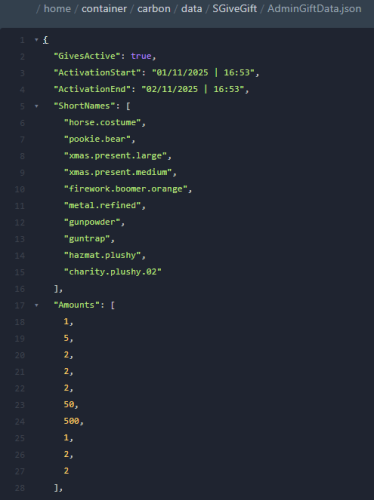 One-click activation with automatic 24h gift window When you press Enable, the plugin automatically creates a 24-hour period during which players can claim their gift. No manual scheduling or date setup — activate it and it’s ready. Adjustable time zone Choose your preferred time zone (Paris, London, UTC, etc.). All timestamps displayed by the plugin follow this setting. Clean and user-friendly CUI A custom interface where: Admins configure items, quantities, and images Players see and claim their rewards ImageLibrary support provides clean visuals One-time claim per player Each player can claim the gift only once during the active period. All claim data is automatically saved. ImageLibrary support Easily link custom images for each reward to enhance presentation. Simple data handling All admin settings and player claim data are saved automatically and safely reloaded on server restart. Permissions sgivegift.admin Grants access to the admin UI for configuring gifts. Commands Player Commands /pgift Opens the player gift menu (if a gift event is currently active). Admin Commands /agift Opens the admin UI to configure items, quantities, images, and to enable/disable the gift. /genitems (Rust admin only) Generates a JSON file containing a dictionary of all item shortnames. Configuration file Data file (example) data/SGiveGift/AdminGiftData.json$5.99