Shiro
Administrator
-
Joined
-
Last visited
Files posted by Shiro
-
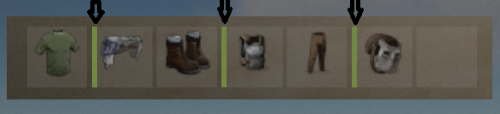
This plugin allows NPC to not only deal damage to the on hit player, but also reduce the durability of equipped armor.
Currently, the plugin randomly selects from the available equipped armor what has durability and reduces this value when it hits the player.
The perfect plugin for Hardcore servers to keep players from stockpiling a lot of items.
The plugin only processes items that have a durability scale.
Reduces armor durability for each item that is listed in the config file.
Permission, for the plugin to work = "armornotforever.use";
Permission, armor will take damage such as player = "armornotforever.damagetotal";
Permission, armor will take damage as you set = "armornotforever.damagemultiplier";
Permission, armor does not take damage = "armornotforever.damagebypass";
If the player has "armornotforever.damagetotal" permission.
This means the settings from the "Multiplier settings" list will not be taken into account and the armor with a probability (50/50) will be damaged such as the player receives.
If the player has "armornotforever.damagemultiplier" permission.
This means if in the settings "attire.hide.poncho": 1.0,
then the poncho has a (50/50) chance of taking 1 damage.
If the player has "armornotforever.damagebypass" permission.
This means that the player's armor will not take damage.
I also want to draw attention to the fact that if you test the plugin in god mode, then the armor will not take damage.
In the "Global settings" there is an item "Debag" by turning it on you will see in the server console what item and what damage is done to the player's armor.
Default the config file.
{ "Global settings": { "Debag": true, "Damage from (Suicide). Does not damage armor.": false, "Damage from (Bleeding). Does not damage armor.": false, "Damage from (Drowning). Does not damage armor.": false, "Damage from (Thirst). Does not damage armor.": false, "Damage from (Hunger). Does not damage armor.": false, "Damage from (Cold). Does not damage armor.": false, "Damage from (Heat). Does not damage armor.": false, "Damage from (Fall). Does not damage armor.": false, "Damage from (Radiation). Does not damage armor.": false }, "Multiplier settings": { "Item list Head (item shortname : multiplier)": { "metal.facemask": 1.0, "diving.mask": 1.0, "hat.gas.mask": 1.0, "heavy.plate.helmet": 1.0, "bucket.helmet": 1.0, "wood.armor.helmet": 1.0, "sunglasses": 1.0, "twitchsunglasses": 1.0, "riot.helmet": 1.0, "coffeecan.helmet": 1.0, "deer.skull.mask": 1.0 }, "Item list Body (item shortname : multiplier)": { "hazmatsuit": 1.0, "hazmatsuit.arcticsuit": 1.0, "hazmatsuit.nomadsuit": 1.0, "hazmatsuit.spacesuit": 1.0, "heavy.plate.jacket": 1.0, "metal.plate.torso": 1.0, "roadsign.jacket": 1.0, "bone.armor.suit": 1.0, "wood.armor.jacket": 1.0, "attire.hide.poncho": 1.0, "jumpsuit.suit": 1.0, "jumpsuit.suit.blue": 1.0, "cratecostume": 1.0, "barrelcostume": 1.0, "gloweyes": 1.0 }, "Item list Pants (item shortname : multiplier)": { "heavy.plate.pants": 1.0, "wood.armor.pants": 1.0, "roadsign.kilt": 1.0 } } }- Free
- 38 Downloads
-
Eng
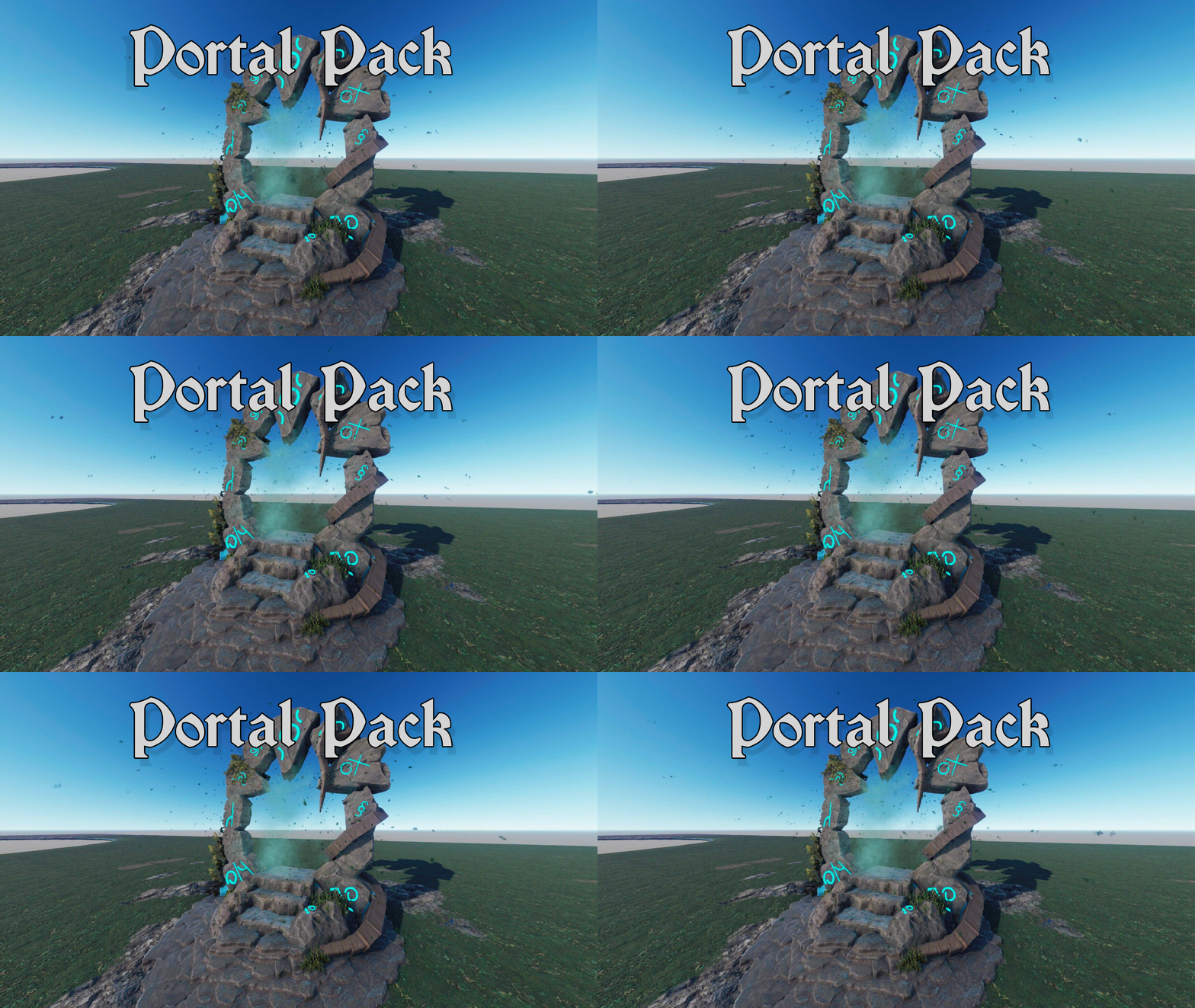
All the portals presented in this collection serve as spawn points for players. You can't build around each of the portals. Each portal is easy to install. I will add more portals to this package. There are currently portals in total.
Rus Все порталы, представленные в этой коллекции, служат для игроков точками появления. Вы не можете строить вокруг каждого из порталов. Каждый портал легко установить. Я добавлю в этот пак больше порталов. Всего в настоящее время порталов.- $5.99
- 2 Downloads
-
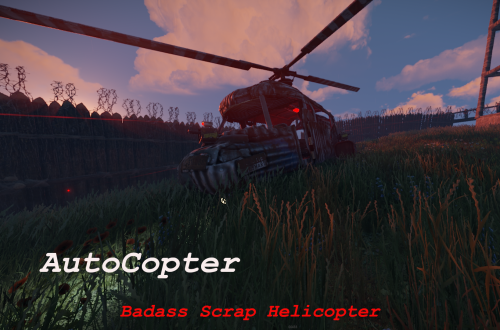
AutoCopter brings you all the tools needed to survive the Rust Apocalypse while flying in your private helicopter.
Features
Customizable Health Points
Customizable upgrade costs
Fancy extra light in the back
2 turrets on top of fuel tanks and 1 in front of the helicopter
Destroying or crashing the scrap helicopter will refund all items on ground including weapons and ammo.
Chat Commands
/upautocopter -> Will upgrade your owned Scrap transport helicopter with turrets and light
Configuration
The settings and options can be configured in the AutoCopter file under the config directory. The use of an editor and validator is recommended to avoid formatting issues and syntax errors.
{ "UpgradeCost": 4000, "HeliConfig": { "MaxHealth": 4000.0 } }
- $5
- 11 Downloads
-
Large RedCardRoom-Monument
Prefabcount: around 890
1 redcardpuzzle
1 blue card spawner
1 recycler
31 loot containers (tier 1-3) in total - 1 hackable
1 drinkable watersource
4 CCTV cams
2 murderers/zombies
5 heavy scientists
1 public phone
1 radiation area
The area in and around the monument is prevent building zone.
The monument marker (shows the name of the monument on the map) has to be added by yourself.
Requires: uMod/Oxide, RustEdit DLL
- $10
- 7 Downloads
-
"Small" RedCardRoom-Monument
It includes two hidden rooms:
A redcard-room (standard redcardpuzzle)
and a loot room which can be accessed through a vent.
If you know the space you need about 10 - 15 mins to run through the whole monument (excluding time on the recycler).
The size is around 3 supermarkets long and 1 supermarket wide.
It has around 2560 prefabs.
1 blue card spawner
1 recycler
2 static computerstations
3 vending machines (which can be personally filled)
7 picture frames
1 large banner
1 public phone
1 telephone
21 loot containers (tier 1-3) in total - 2 crates with custom loot (only fishes) - the .lprof is added to the file
2 drinkable watersources
7 CCTV cams
Discofloors are not connected to electricity, but can be. I recommend "aqua-" and "ripple-style, "low-" and "slow-speed" if connected to the boombox, which is hidden in a crystalchair. There you can also hide the testgenerator.
Further you can build around the area of the crystalfurniture, which means you can for example place fireworks.
The two rugs in the office are deployed ones and should be able to be reskined with the spraycan. (not guaranteed! - i could reskin boxes, but couldnt do it with the beachtowels for example)
The other area in and around the monument is prevent building zone.
The monument marker (shows the name of the monument on the map) has to be added by yourself. (prefabs - monument marker - name: Abandoned Aquarium
Requires: uMod/Oxide, RustEdit DLL
- $10
- 2 Downloads
-
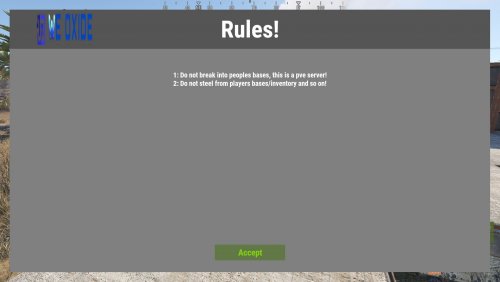
Simple and highly customizable UI, Show your players the rules when they first connect to the server!
Text Styling: Yes u can combine them!
<color=red>This changes the text color to red!</color> <b>This makes text bold!</b> <i>This makes text italic!</i> <size=20>This changes the text size to 20!</size> Commands:
/rules - shows the rules! Configuration:
{ "Text": [ "1: Do not break into peoples bases, this is a pve server!", "2: Do not steel from players bases/inventory and so on!" ], "UI": { "MainPanel": { "BackgroundColor": "0.5 0.5 0.5 1", "Size": { "AnchorMin": "0 0", "AnchorMax": "1 1", "OffsetMin": "25 25", "OffsetMax": "-25 -25" } }, "Header": { "Text": "Rules!", "FontSize": 60, "FontColor": "1 1 1 1", "BackgroundColor": "0.33 0.33 0.33 1", "Size": { "AnchorMin": "0 1", "AnchorMax": "1 1", "OffsetMin": "0 -100", "OffsetMax": "0 0" }, "Image": { "Shown": true, "ImageURL": "https://weoxide.net/uploads/monthly_2022_02/713574979_WEOXIDE_basic-file-1022200x106.png.160179787166532ce1a2b0924939fb25.png", "Size": { "AnchorMin": "0 0.5", "AnchorMax": "0 0.5", "OffsetMin": "69 -40", "OffsetMax": "211 40" } } }, "Rules": { "FontSize": 18, "FontColor": "1 1 1 1", "Size": { "AnchorMin": "0 0", "AnchorMax": "1 1", "OffsetMin": "35 70", "OffsetMax": "-35 -135" } }, "AcceptButton": { "Text": "Accept", "TextColor": "0.511 0.837 0.021 1", "TextSize": 22, "BackgroundColor": "0.3921569 0.4705882 0.2745098 1", "Size": { "AnchorMin": "0.5 0", "AnchorMax": "0.5 0", "OffsetMin": "-90 30", "OffsetMax": "90 70" } } } }
- $10
- 3 Downloads
-
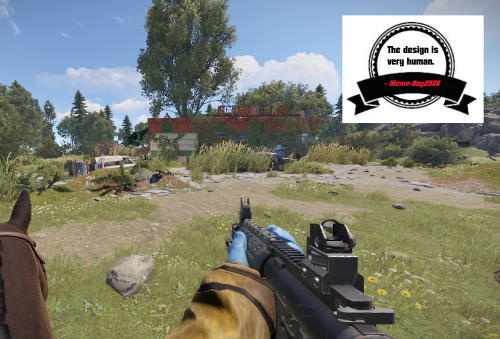
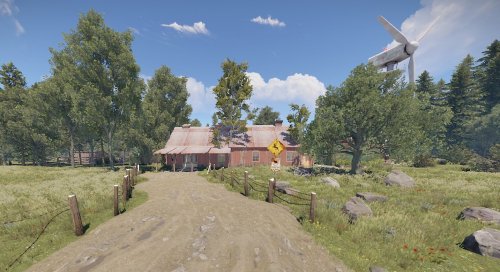
Overgrowth Version of the Spermket Supermarket for Temperate Biome.
Prefabcount: around 1000
My horse and me are not included.
Requires: uMod/Oxide, RustEdit DLL
- $3
- 2 Downloads
-
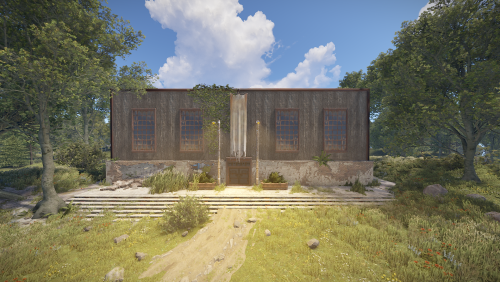
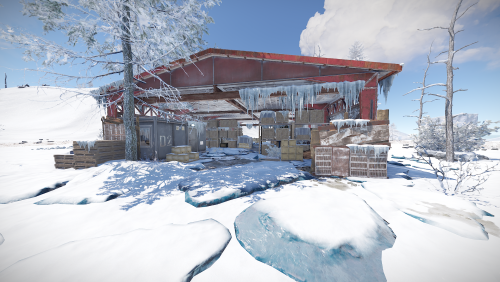
Gas Station for snowy and arctic areas.
Prefabcount: around 800
Requires: uMod/Oxide, RustEdit DLL
- $3
- 7 Downloads
-
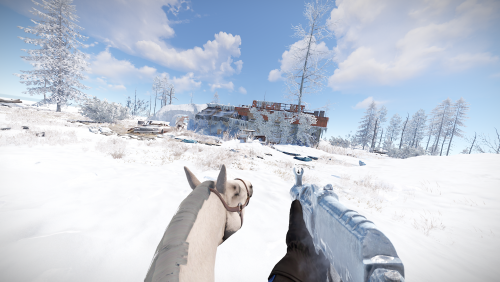
Supermarket for snowy and arctic areas.
Prefabcount: around 800
Requires: uMod/Oxide, RustEdit DLL
- $3
- 5 Downloads
- 1 Comments
-
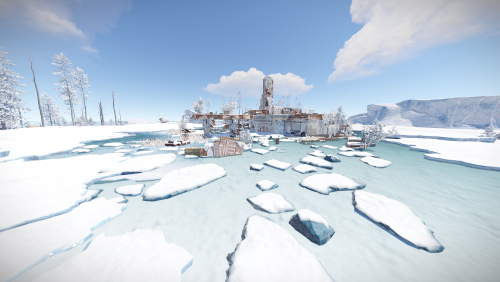
Mining Outpost for snowy and arctic areas.
Prefabcount: around 300
Requires: uMod/Oxide, RustEdit DLL
- $3
- 7 Downloads
-
Large buildable PVE/Roleplay-Area.
(Note: You can't build everything. That means you are not able to place walls if there is alrdy a foundation. What you can is placing all kind of deployables and definitly build when theres no foundation.)
The basic idea of this is the animal shelter itself (Nice with a pet-plugin or maybe a soon coming extention).
You can spawn wolfs, chicken, bears, whatever in the seperated cells (they will stay there).
There is space for a vet, a farmer and a (car) mechanic or whatever your playerbase can think of.
Two "crimescenes" for RP-Szenarios are also included. Swimming dead bodies and stuff in the underground silo and human meat parts in the boar trough.
You can spraycan some entities. (doors, boxes, ect.)
The area in and around the area has no prevent building zone.
Prefabcount: around 3000
Requires: uMod/Oxide, RustEdit DLL
Feedback would be appreciated.
- $10
- 1 Downloads
-
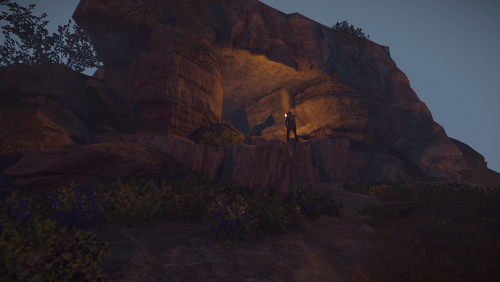
This cave has been built getting inspiration from the old rust caves after someone asked me in discord if they can be rebuilt so i had a go at it and this is how far i could make it to look like the old rust caves
Enjoy it
- Free
- 183 Downloads
-
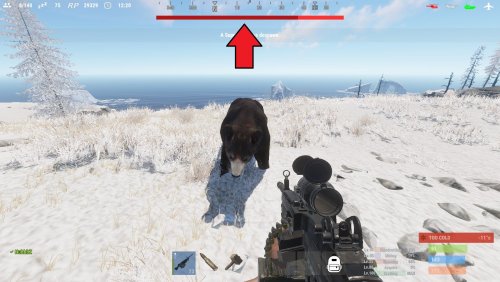
See your targets health with a nice HUD. With 4 customizable styles, change it up how ever you would like it to be, you can change the texts format, colors, etc!
Note:
if none of the styles suit you, you can always ask me to make a new one, just give me a rough sketch and I will make it!
With an internal whitelist you can choose what entities the HUD will trigger on "shortprefabname"!
"ActiveTargetDuration" is the length the HUD will be shown for when you attack a target, the length is reset if you attack a target again!
TextFormat {0} = target name, {1} = target current health, {2} = target max health
By default, the lang file is set to show the targets display name, and is set to null in the file. You can change from null to anything you want that entity to be shown as, for example "chicken": "Mr. Pecker!"
Styles:
top detailed
top thin
hotbar detailed
hotbar thin
Permission:
targethealthhud.use
Config:
{ "Style": "top detailed", "TextFormat": "{0} {1}/{2} HP", "ActiveTargetDuration": 60, "Whitelist": [ "npc_bandit_guard", "scientistnpc_ch47_gunner", "scientistnpc_oilrig", "scientistnpc_excavator", "scientistnpc_junkpile_pistol", "scientistnpc_roam", "scientistnpc_roamtethhered", "scientistnpc_patrol", "scientistnpc_peacekeeper", "scientistnpc_heavy", "scientistnpc_full_pistol", "scientistnpc_full_any", "scientistnpc_full_mp5", "scientistnpc_full_lr300", "scientistnpc_full_shotgun", "scientistnpc_cargo", "scientistnpc_cargo_turret_any", "scientistnpc_cargo_turret_lr300", "npc_underwaterdweller", "npc_tunneldweller", "patrolhelicopter", "bradleyapc", "simpleshark", "bear", "boar", "chicken", "stag", "wolf" ], "UI General": { "TextColor": "1 1 1 1", "PrimaryColor": "0.7058824 0.07843138 0.07843138 1", "SecondaryColor": "1 0.1960784 0.1960784 1" }, "UI Styles": { "Top Detailed": { "AnchorMin": "0.3297916 0.9127777", "AnchorMax": "0.6683334 0.9424074" }, "Top Thin": { "AnchorMin": "0.3297916 0.9127777", "AnchorMax": "0.6683334 0.9312962" }, "Hotbar Detailed": { "AnchorMin": "0.3437505 0.1185186", "AnchorMax": "0.6406256 0.1462963" }, "Hotbar Thin": { "AnchorMin": "0.34375 0.1203704", "AnchorMax": "0.640625 0.1314815" } } }
Language:
{ "npc_bandit_guard": null, "scientistnpc_ch47_gunner": null, "scientistnpc_oilrig": null, "scientistnpc_excavator": null, "scientistnpc_junkpile_pistol": null, "scientistnpc_roam": null, "scientistnpc_roamtethhered": null, "scientistnpc_patrol": null, "scientistnpc_peacekeeper": null, "scientistnpc_heavy": null, "scientistnpc_full_pistol": null, "scientistnpc_full_any": null, "scientistnpc_full_mp5": null, "scientistnpc_full_lr300": null, "scientistnpc_full_shotgun": null, "scientistnpc_cargo": null, "scientistnpc_cargo_turret_any": null, "scientistnpc_cargo_turret_lr300": null, "npc_underwaterdweller": null, "npc_tunneldweller": null, "patrolhelicopter": null, "bradleyapc": null, "simpleshark": null, "bear": null, "boar": null, "chicken": null, "stag": null, "wolf": null }
- $10
- 12 Downloads
-
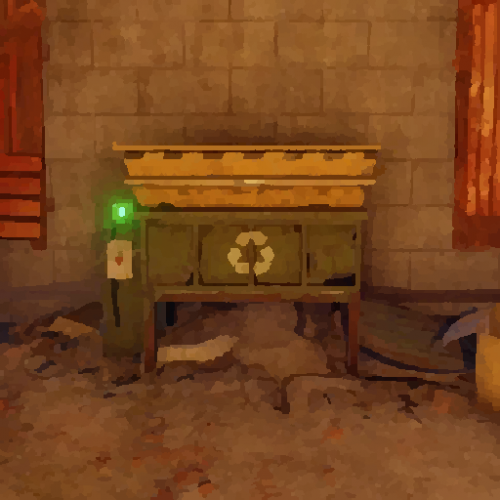
This plugin allows you to place and pickup recyclers! It is simple and perfect for your tebex shop, give the players the ability buy a recycler, without having to wait for an admin to place it!
Hit it with a hammer and its in your inventory! Simple as that!
Notes:
If you plan on changing the skin do it before giving anyone a place able recycler, as it will break the current placed recyclers! "Wont allow them to pick them up"
Permissions:
placeablerecyclers.give - permission for the command /giverecycler
placeablerecyclers.remove - permission for the command /removerecycler
Commands:
/giverecycler - Would give you a recycler!
/giverecycler [playername] - Would give the player name given a recycler!
/removerecycler - Toggleable command to enable/disable the ability to pickup a placeablerecycler!
Configuration:
{ "SkinID": 2245200021 }
Language:
{ "Given": "<color=green>A Placeable Recycler has been given to {0}!</color>", "Returned": "<color=green>You have picked up the recycler!</color>", "PlayerNotFound": "<color=red>Cannot find the player by the given ID or Name {0}!</color>" }- $5
- 7 Downloads
-
Recyclers are back on the oil rigs just like it used to be! You can customize the location of the recycler however you want!
Notes:
OilrigAI = Small Oil Rig
OilrigAI2 = Large Oil Rig
Use RustEdit to get the position and rotation information if you plan on changing its location! "place the oil rig prefab in the center of the map, set its position and rotation all to 0 and then place your recycler and get its position/rotation"
Configuration:
- $5
- 1 Downloads
-
Lock players inventory's instantly through command or permissions!
Commands:
/lock playername type
/unlock playername type
*type = "wear, main, belt"
Permissions:
inventorylock.use
inventorylock.bypass
inventorylock.main
inventorylock.belt
inventorylock.wear
Language:
- $5
-
This plugin lets you control every aspect of a FishTrap! From its percentage of catch to how often it catches! You can make fish traps 2X or 5X!
This plugin is compatible with ContinuousFishTraps!
Note:
Do not change the name of the fish in the targetWildlife!
decayDamageScale: 1 being 100% of the fishtraps health!
Weight: is like a percentage of catch, for example you have 60% chance to catch minnows!
tickRate: is for how often u want the fishtrap to catch fish!
trappedEffectRepeatRate: is how often do u want the effect that a fish has been caught to occur!
trapSuccessRate: what chance do u want the fish traps to catch fish on the first try! 1 being 100%
Example config to ignore certain bait
"ignoreBait": [
"bearmeat.cooked",
"pumpkin"
]
Configuration: "Note: The default config has the default configuration of a vanilla fish trap"
To do:
Custom loot table!
- $5
-
This plugin lets the fish traps run without stopping! Normally when using the fish traps you have to empty them out or just at least open them to reset them to catch another fish.
This plugin is compatible with FishtrapController
Permission:
continuousfishtraps.use
Configuration:
- $5
-
Block the use of certain tools when gathering an NPC, Player, Animal, Node, Tree, ETC! Control what tools they cannot use!
Permissions:
bettertoolblocker.bypass
Configuration:
Language:
- $5
-
You can skin items that are already placed!
Note:
To be able to use this plugin, the player first must have the permission or be in a group with the permission.
You can only skin an object that is whitelisted in the config.
Only add an items that are skinable into the whitelist!
To be able to change the skin of an object, it must be in the whitelist! And then only if you placed it, or are authorized on the TC, and if you have 'UseTeams' enabled, you can skin items placed by members from your team.
It is ideal to stand fully and look at the object directly before skinning, because the raycast ray is positioned to your head!
Permissions:
skinsight.use "Command: /skinitem"
skinsight.reset "Command: /skinreset"
skinsight.info "Command: /getskinid"
skinsight.bypass "Allows you to use the commands, bypassing the security checks!"
Commands:
/skinitem skinid
/skinreset
/getskinid
Configuration:
Language:
- $5